

Overview
There are three ways to change material discounts in Ensign. Each method suits a different situation:
| Method | Best for | Where |
|---|---|---|
| Method 1: Setup menu | Updating discounts for an entire product range across all future jobs | Outside of any project |
| Method 2: Change Discount button | Updating the discount bands for a specific range while working inside a job | On the takeoff screen |
| Method 3: Double-click the discount cell | Applying a quick discount to a single product line | On the takeoff screen |
All three methods work in both Electrical Estimating and MEP Estimating. The only difference is that in MEP Estimating, the Setup page is accessed via Tools > Options > Setup rather than Tools > Setup.
In MEP Estimating, the Tools menu contains an Options submenu. Select Options, then Setup to reach the same Setup page shown in the Electrical Estimating screenshots. The rest of the process is identical.
Method 1: Changing discounts via the Setup menu
Use this method when you want to update the discount for an entire product range, and have the change apply to all future jobs.
- 1
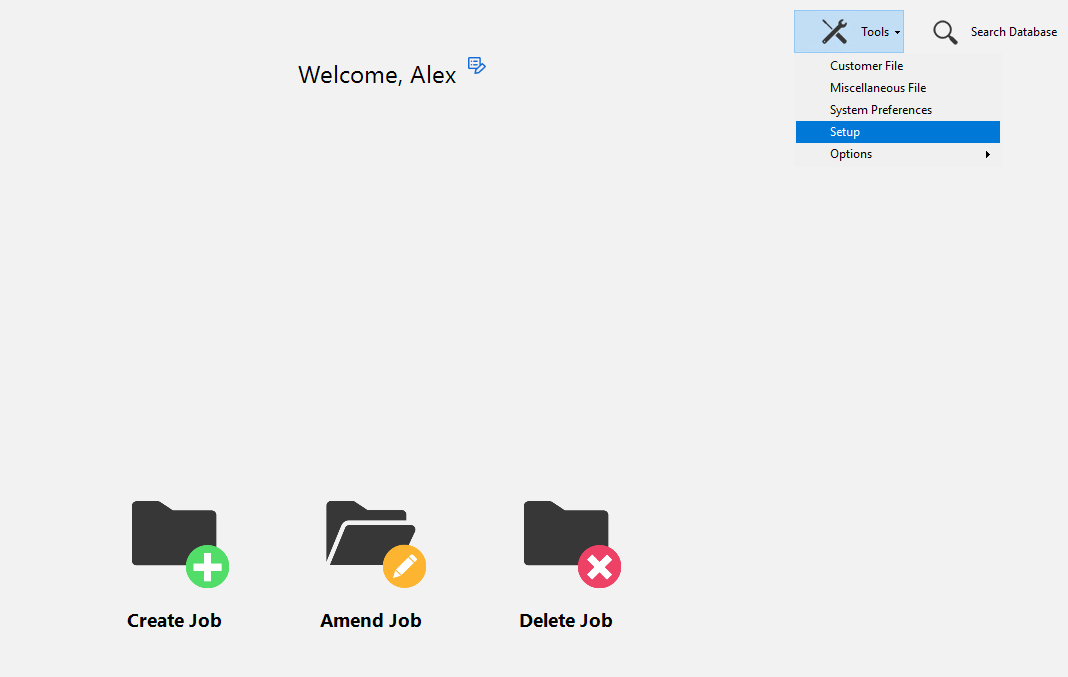
From the main screen, open the Tools menu and select Setup.
- 2
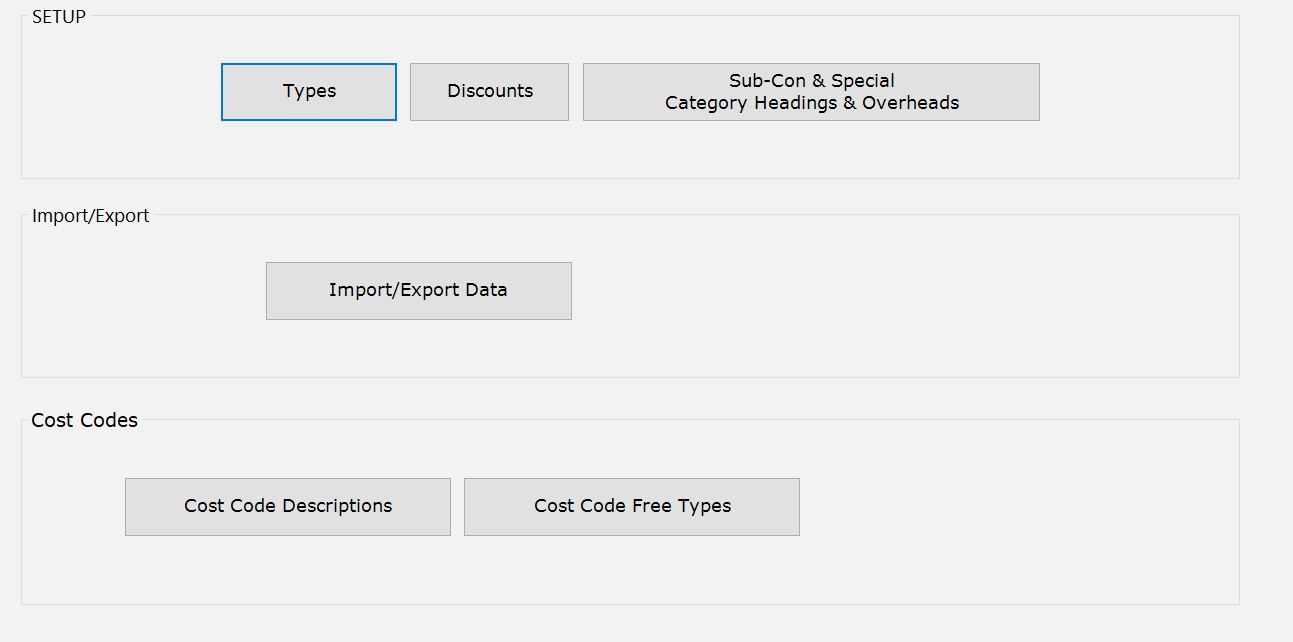
Click the Discounts button on the Setup page.
- 3
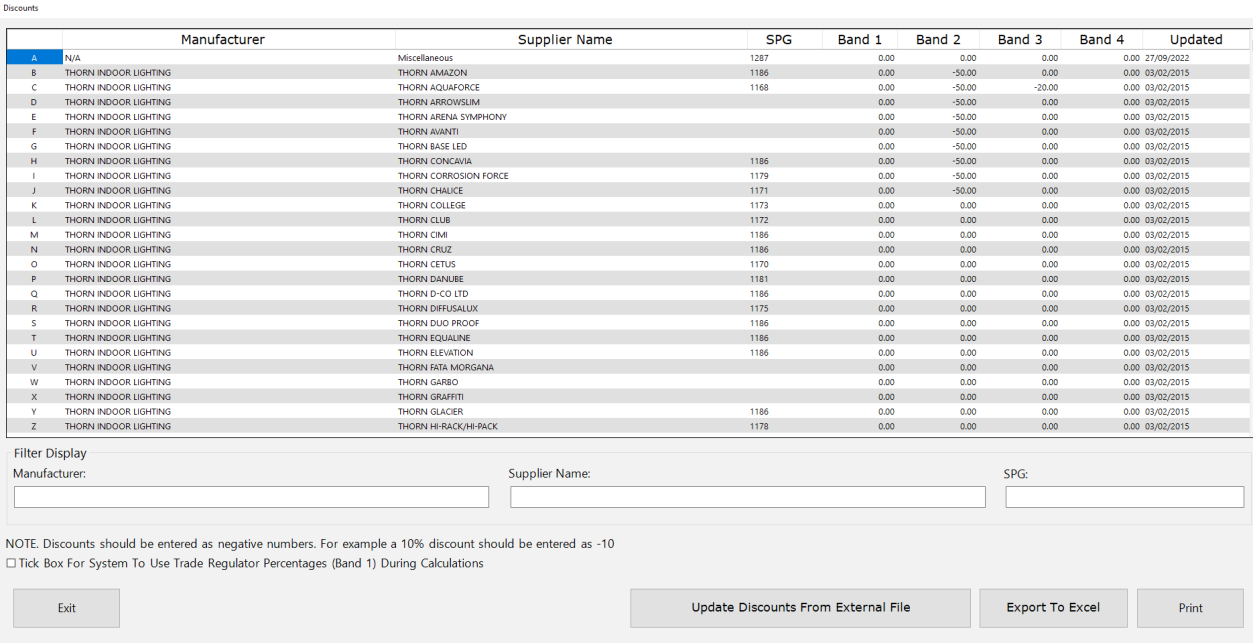
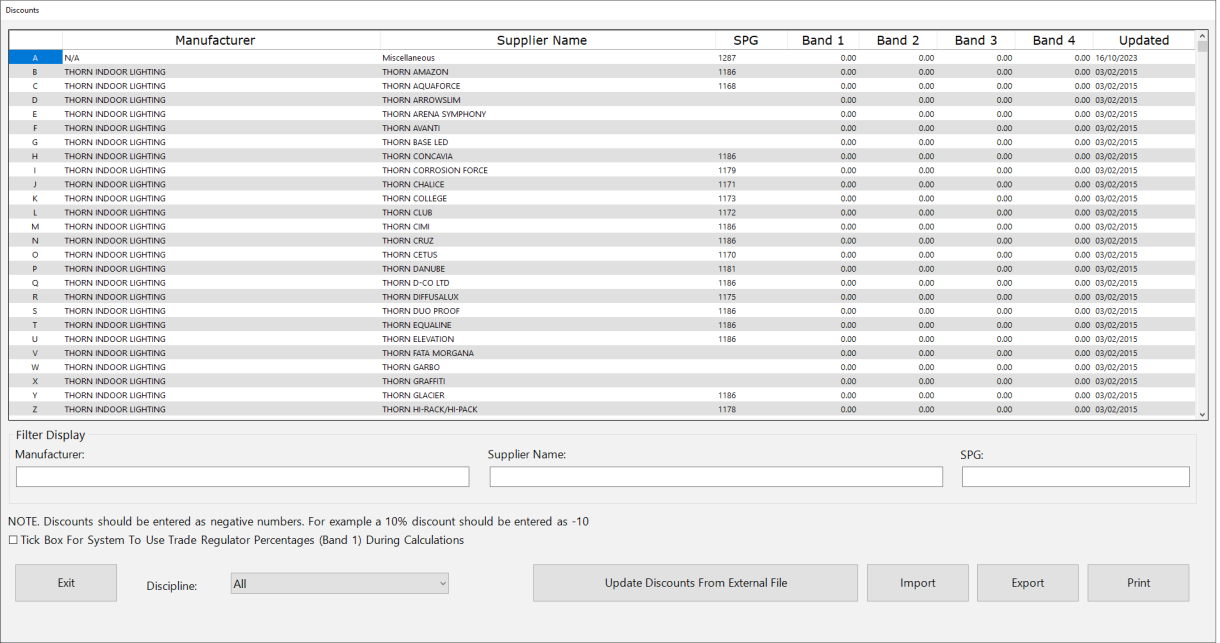
The discount band table opens, showing all product ranges. Locate the range you want to update — you can click any column header to re-sort the table.
- 4
Enter your discount as a negative number in the appropriate band column. Use Band 2 for the primary discount. If you have additional discounts, enter them into Band 3 and Band 4.

Always include the minus symbol when entering discounts. A 60% discount should be entered as -60. Without the minus, the value will not be treated as a discount.
In MEP Estimating
The process is the same, but the menu path differs slightly. Navigate to Tools > Options > Setup, then click Discounts.
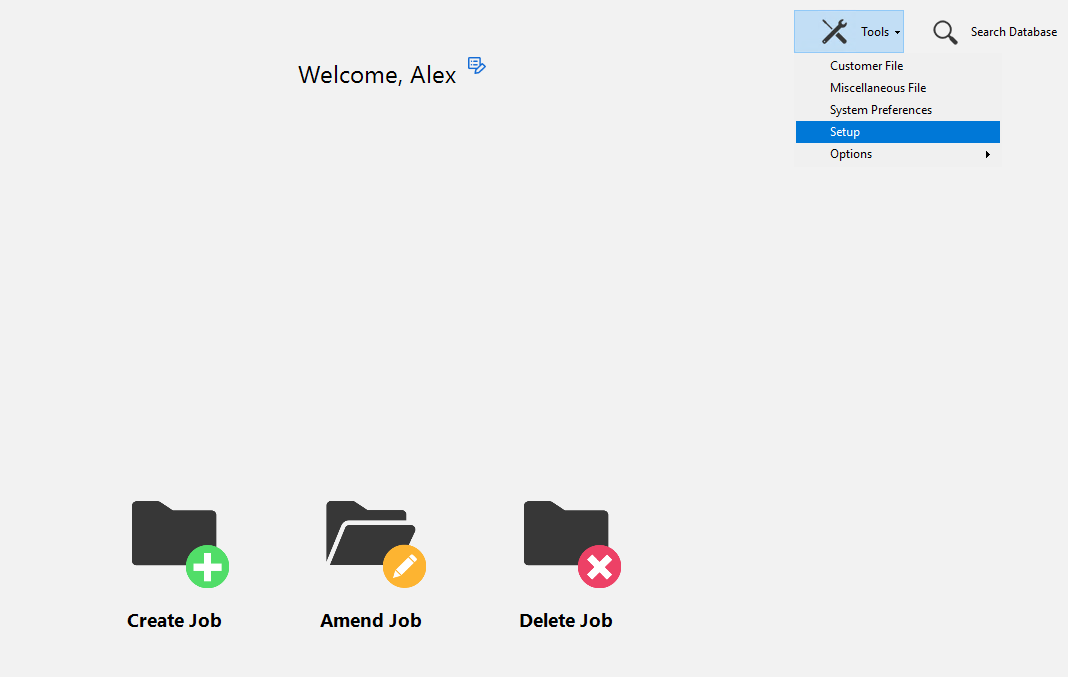
The discount band table in MEP Estimating works identically to the Electrical version.
Method 2: Using Change Discount inside a job
Use this method when you want to update the discount for a product range while working on the takeoff screen. You can choose to save the change just for the current job, or update the master discount table for all future jobs.
- 1
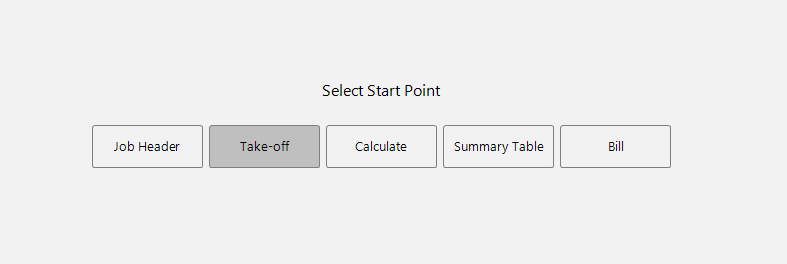
Navigate to the Take-off screen within your job.
- 2
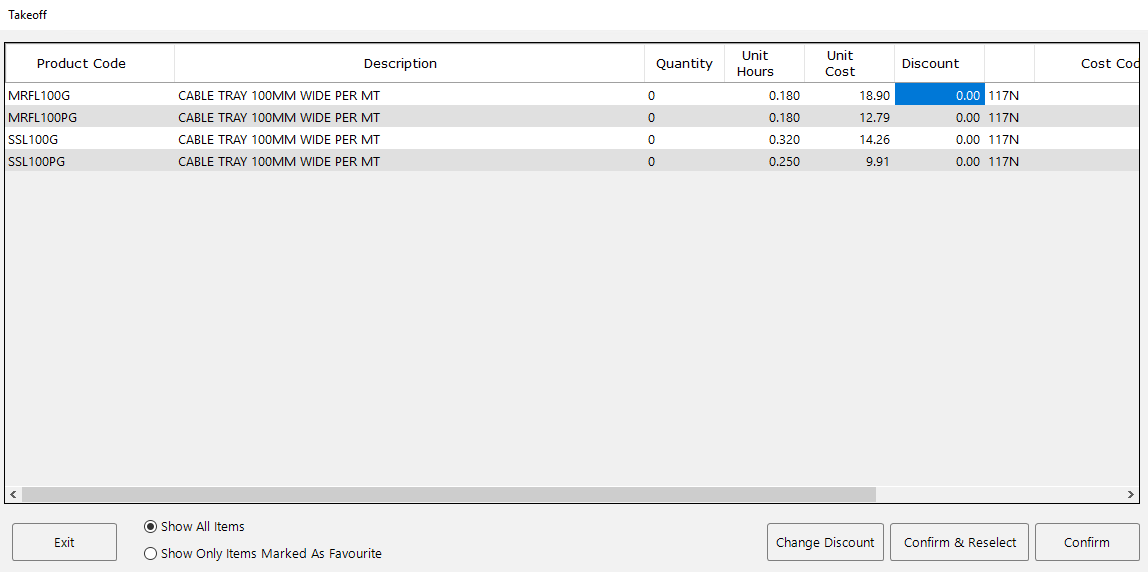
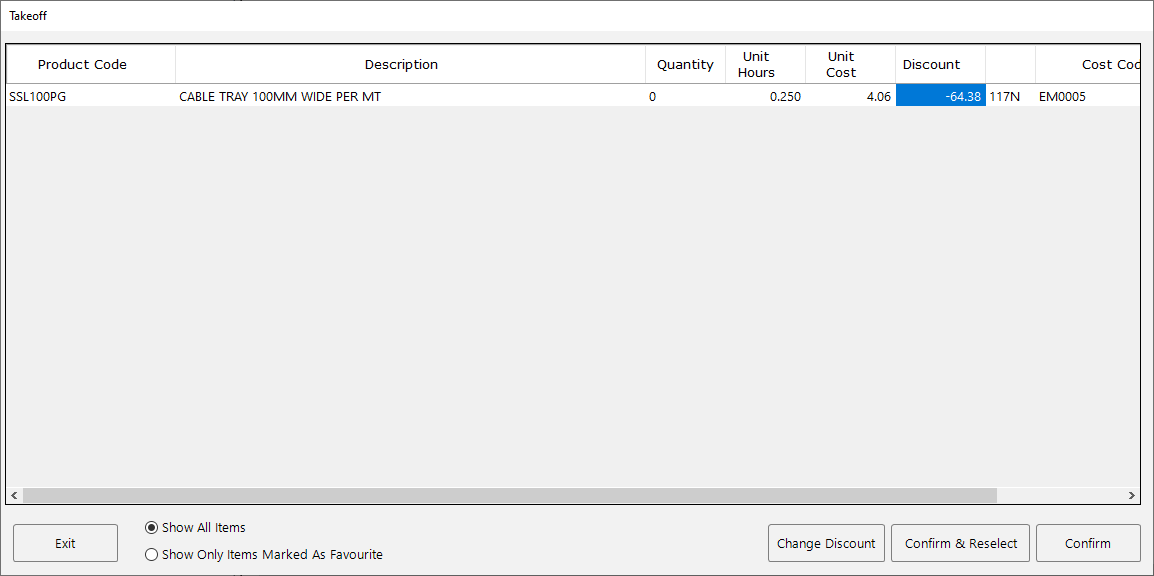
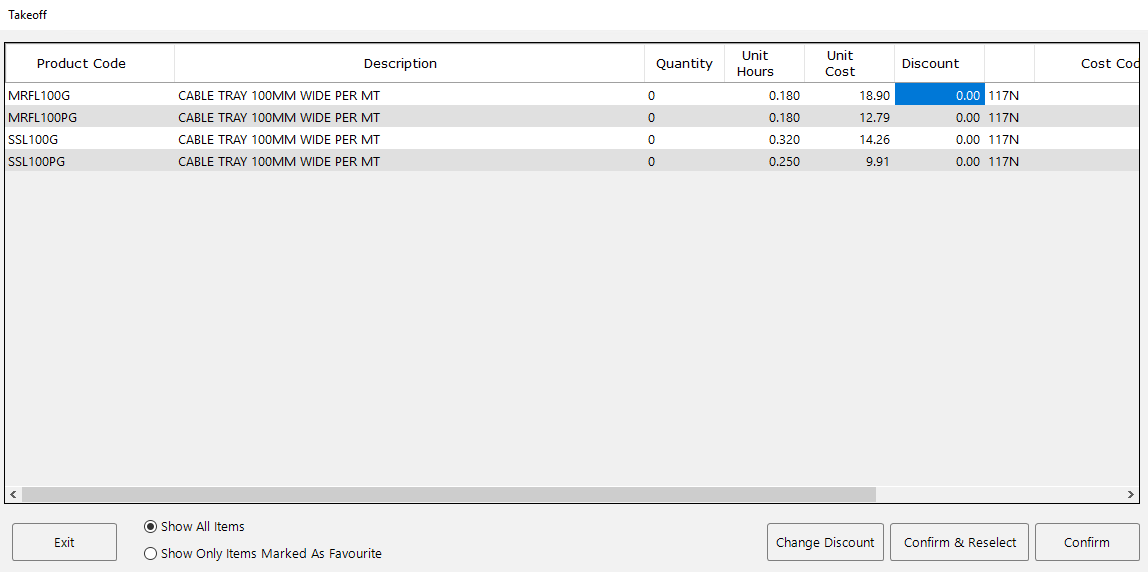
Select the item you want to update. This opens the input/quantity screen showing the product code, description, unit cost, and discount columns.
- 3
Highlight the box in the Discount column for the item you want to change, then click the Change Discount button in the bottom-right corner of the screen.
- 4
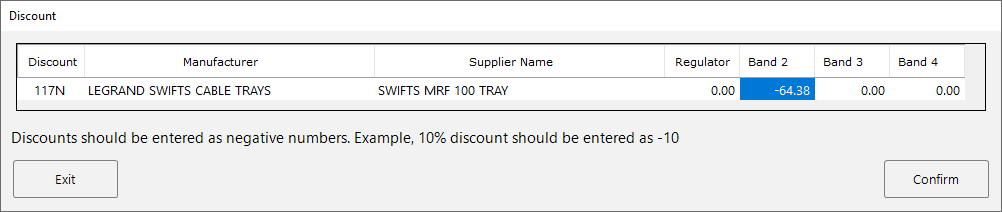
A pop-up window opens showing the discount bands for the product range this item belongs to. You can see the current values and update them as needed.
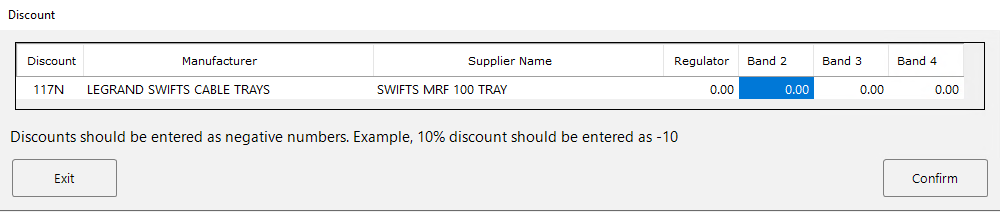
Enter your new discount as a negative number in the appropriate band, then click Confirm.
- 5
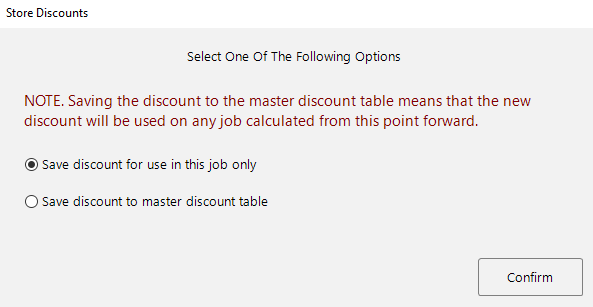
Ensign asks whether you want to save this change for the current job only or update the master discount table.
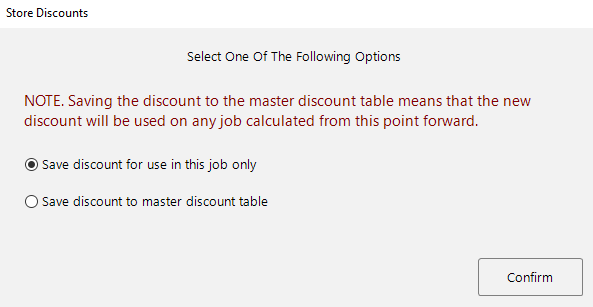
- Save discount for use in this job only — the change applies only to this project. The original master discount remains unchanged for future jobs.
- Save discount to master discount table — the change is saved permanently and will be used in all future jobs.
Viewing job-specific stored discounts
If you chose to save the discount for this job only, you can review and manage these stored discounts at any time.
- 1
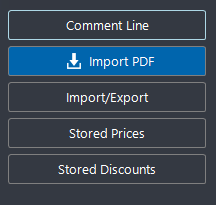
On the takeoff screen, click the Stored Discounts button in the bottom-left panel.
- 2
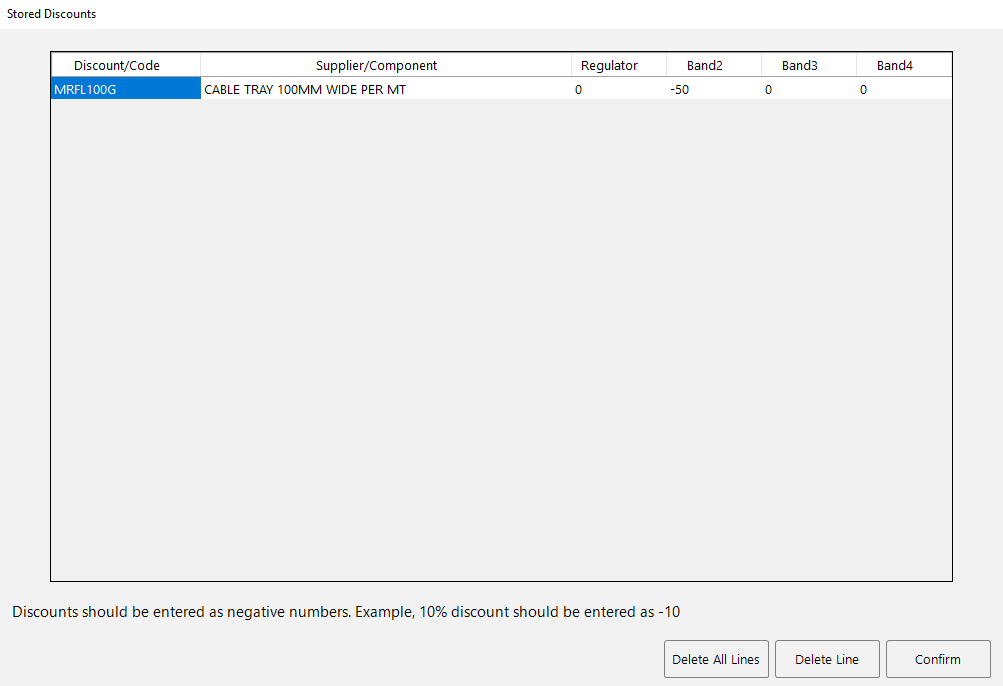
The Stored Discounts screen lists all job-specific discount overrides. From here you can:
- Edit a discount by overwriting the value in the relevant band column.
- Delete a single line by highlighting it and clicking Delete Line.
- Delete all lines by clicking Delete All Lines.
In MEP Estimating
The Change Discount workflow in MEP Estimating is identical. The only visual difference is that some items may show existing discount values already populated from the database.
Method 3: Double-clicking the discount cell
Use this method for a quick, one-off discount change to a single product line within a job.
- 1
Navigate to the Take-off screen within your job and select the item you want to update to open the input/quantity screen.
- 2
Double-click directly within the Discount column of the line you want to change. This makes the cell editable.

Type in your desired discount percentage as a negative number (e.g.
-50for 50%) and press Enter. - 3
Ensign asks whether you want to save this change for the current job only or update the master discount table, just as with Method 2.
The double-click method is the fastest way to apply a discount when you already know the percentage. It is ideal for quickly entering a discount you have been quoted by your wholesaler for a specific product.
Choosing the right method
| Scenario | Recommended method |
|---|---|
| You have negotiated new discount rates with a supplier and want them applied to all future jobs | Method 1 — Setup menu |
| You are working on a job and want to update the discount for a range, with the option to save it permanently or just for this job | Method 2 — Change Discount button |
| You know the exact discount for a single item and want to apply it quickly | Method 3 — Double-click the discount cell |
Regardless of which method you use, any job-specific discount overrides are stored in the Stored Discounts list for that job. You can always review, edit, or remove them from there.