

Overview
Sometimes you already know the exact net price for an item — perhaps from a direct quotation from your wholesaler — and you want to use that figure instead of relying on the discount calculation. Ensign lets you overtype the net rate for any item on the takeoff screen. When you do this, the item is flagged with a different colour so you can easily distinguish manual prices from calculated ones.
Both manual prices and job-specific discount overrides are tracked in the Stored Prices and Stored Discounts lists, where you can review, edit, or remove them at any time.
Overtyping a net rate
On the takeoff screen, you can replace the calculated material cost for any item with your own net rate.
- 1
Navigate to the Take-off screen within your job and select the item you want to update.
- 2
Click into the Unit Cost (or Nett Price) cell for the item and type in the net rate you have been quoted. Press Enter to confirm.
- 3
The item's cost updates immediately. The warning triangle (if present) is removed, and the cell changes colour to indicate that a manual price has been applied.
This is particularly useful when an item shows a warning triangle because no discount has been set. Rather than entering a discount percentage, you can simply type in the net price you have been quoted.
Understanding colour coding
Ensign uses two visual systems on the examine grid to draw your attention to items that need review.
Warning triangles
A warning triangle can appear on both the section tree and within the grid itself. It typically indicates a cell that contains a zero value — such as zero unit cost, zero labour, or a missing discount. Resolving the underlying issue (for example, entering a net rate or setting up a discount) removes the triangle.
Cell colours
| Cell colour | Meaning |
|---|---|
| No highlight | The price has been calculated automatically using the trade price and your discount bands. |
| Yellow | The cell contains a zero cost, zero quantity, or an item with no install time applied. Review these items to ensure your data is accurate. |
| Peach | A value has been manually overwritten and is stored for this job only. This helps you quickly identify where manual changes have been made. |
If you see yellow cells, check whether a discount or net rate needs to be entered. For peach cells, you can review and revert manual changes using the Stored Prices button — see below.
Viewing stored prices and stored discounts
Both manual price overrides and job-specific discount changes are saved in dedicated lists. You can access these from the takeoff screen.
- 1
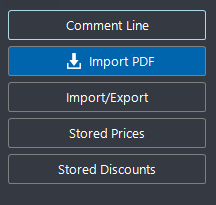
On the takeoff screen, look at the button panel on the left-hand side. You will see the Stored Prices and Stored Discounts buttons.
- 2
Click Stored Discounts to view all job-specific discount overrides. This screen lists every item where you have saved a discount for this job only, showing the product code, description, and band values.
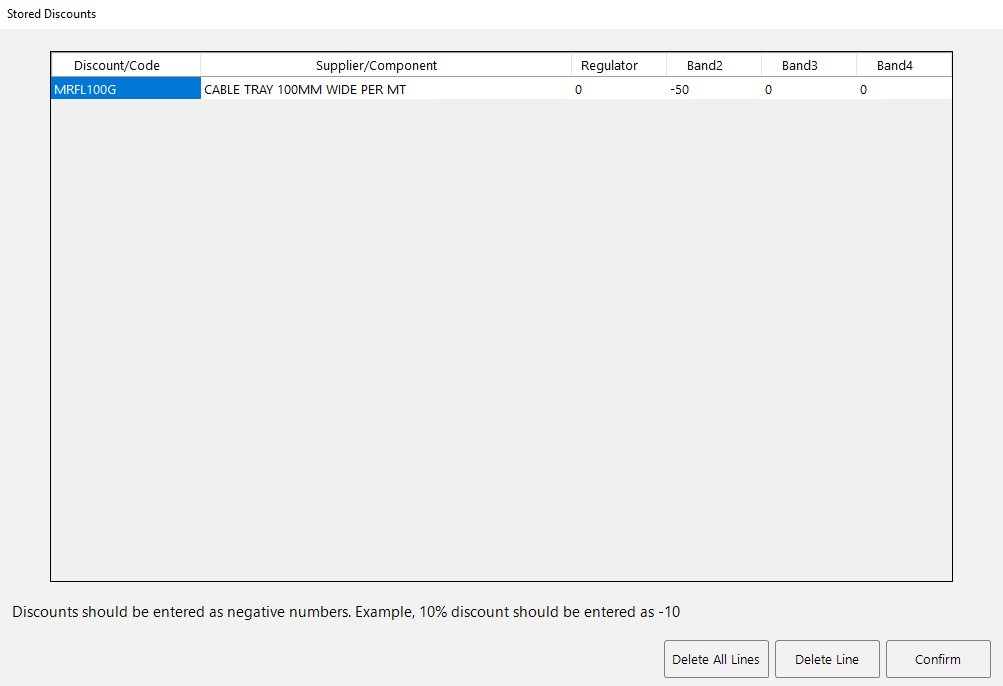
From this screen you can:
- Edit a discount by overwriting the value in the relevant band column.
- Delete a single entry by highlighting it and clicking Delete Line.
- Delete all entries by clicking Delete All Lines.
- Click Confirm to save any changes.
- 3
Click Stored Prices to view all items where a manual net rate has been entered. The layout is similar, listing each overridden item with its manually set price.
Saving discounts for this job or the master table
When you change a discount (either via the Change Discount button or by double-clicking the discount cell), Ensign asks where you want to save it.
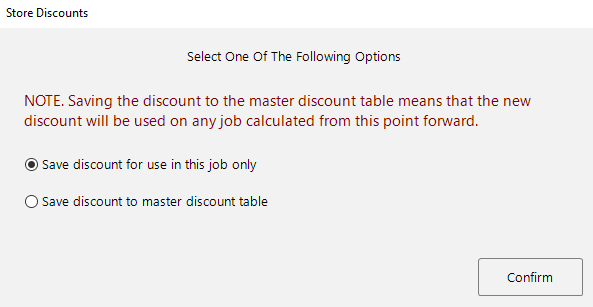
- Save discount for use in this job only — the change applies only to this project. It appears in the Stored Discounts list and does not affect other jobs.
- Save discount to master discount table — the change is saved permanently and will apply to all future jobs.
Saving to the master discount table overwrites the existing discount for that product range across all future jobs. Only use this option if you are certain the new discount should apply universally.
Turning stored prices off
If you decide that a manual price or job-specific discount is no longer needed, you can remove it to revert the item to its calculated price.
- 1
Open the Stored Prices or Stored Discounts screen from the takeoff side panel.
- 2
Highlight the entry you want to remove and click Delete Line. To clear all overrides, click Delete All Lines.
- 3
Click Confirm. The affected items revert to their standard calculated prices based on the trade price and your discount bands.
Removing a stored price or stored discount does not delete the item from your job — it simply recalculates the cost using the standard discount method. This is useful if you initially entered a manual price as a placeholder and later want to switch back to the calculated figure.
How stored prices interact with recalculation
When you recalculate a job, items with stored prices or stored discounts are treated differently depending on the recalculation method you choose. In general, manually adjusted items are protected from automatic updates. If you want a recalculation to include these items, you must first remove them from the Stored Prices or Stored Discounts lists.
For full details on recalculation options, see Recalculating Job Prices.