

When recalculation applies
The first time you calculate a job, Ensign uses the latest trade prices, your discounts, and your current labour rates to produce the figures. No recalculation prompt appears.
When you return to a previously calculated job and navigate to the calculation stage again, Ensign presents the Select Calculation Method dialog. This gives you control over how existing prices are treated, because trade prices, discounts, and labour rates may have changed since the job was last calculated.
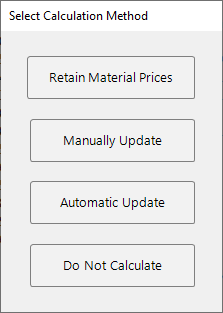
The four options
1. Retain Material Prices
This option keeps all previously calculated material prices exactly as they were. Labour costs may still change if you have updated your labour rate or times. Any new items added since the last calculation are priced using the latest database values.
Best for: Variations to an existing project where you need to preserve the original material costs but add new items.
Example: no labour changes, one new item added
The original five items retain their material costs. The new item (line 6) is priced at current database rates.

Example: labour rate updated, one new item added
The original five items retain their material costs, but labour costs increase because the labour rate has been updated. The new item is priced at current rates for both labour and materials.

You can permanently enable the Retain Material Prices option for a specific job within the advanced options of the job header page. This means the software will always default to retaining prices when you recalculate that job.
2. Manually Update
This option steps through every item in the job one by one, showing you the original calculated values alongside the latest database values. For each item, you decide whether to keep the original price or apply the new one.
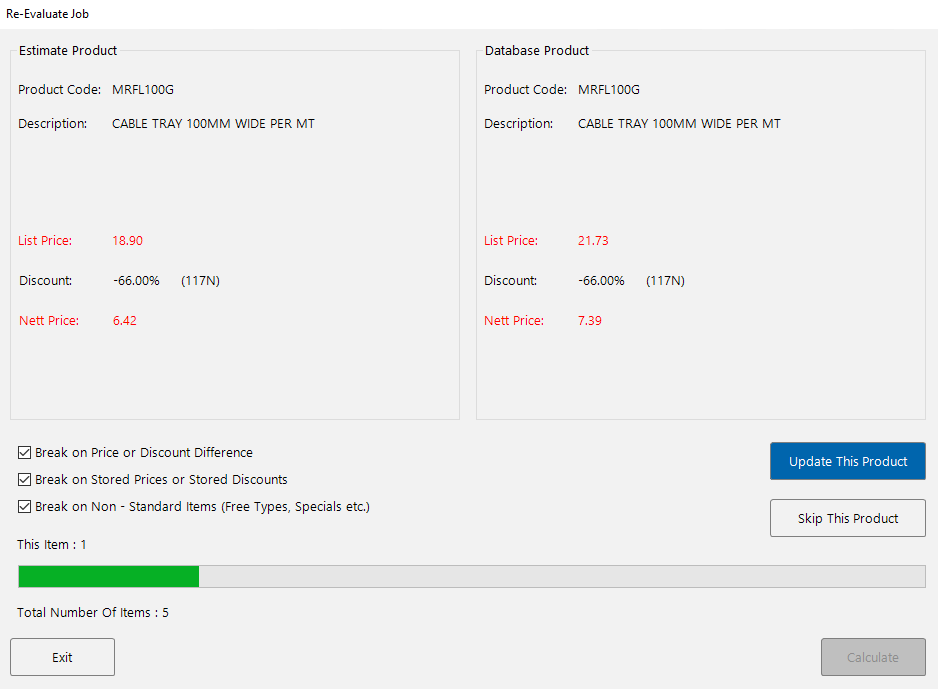
The screen displays:
- Estimate Product (left) — the item's current values in your job, including list price, discount, and net price.
- Database Product (right) — the latest values from the Ensign database.
For each item, click:
- Update This Product — to apply the new database price.
- Skip This Product — to keep the original price.
You can also control which types of changes the manual review pauses on, using the checkboxes at the bottom:
- Break on Price or Discount Difference — pause when the trade price or discount has changed.
- Break on Stored Prices or Stored Discounts — pause on items with manual overrides.
- Break on Non-Standard Items (Free Types, Specials etc.) — pause on contractor-added items.
Any new items added since the last calculation are priced at current database rates.
Best for: Variations where you want granular control over which prices are updated and which are preserved.
3. Automatic Update
This option overwrites all existing prices in your job with the latest values from the database. Trade prices, discounts, and labour times are all updated in one step.

After an automatic update with both price increases and a new labour rate applied:

In this example, material costs have increased (e.g. Cable Tray from 6.42 to 7.39) and labour costs have risen due to an updated labour rate (e.g. Cable Tray from 3.60 to 3.96).
Best for: Repricing a quotation before resubmitting it, when you want the entire job brought up to current rates.
Items with stored prices or stored discounts are not overwritten by the automatic update. If you want these items included, remove them from the Stored Prices and Stored Discounts lists before recalculating. See Stored Prices and Overrides for details.
4. Do Not Calculate
This option makes no changes to the job. It allows you to move forward to the summary table without altering any prices, labour costs, or discounts.
Best for: Viewing or printing reports from an existing job without changing any figures.
Choosing the right option
| Scenario | Recommended option |
|---|---|
| Adding variations to a won project — you need the original material costs preserved | Retain Material Prices |
| Revisiting a job and want to review each price change individually | Manually Update |
| Repricing a quotation to resubmit with the latest rates | Automatic Update |
| Viewing or printing reports without changing anything | Do Not Calculate |
Original calculation reference
The examples in this article use the following original calculation as their starting point:

| Line | Item | No. Off | Labour Cost | Material Cost | Total Cost |
|---|---|---|---|---|---|
| 1 | Cable Tray 100mm Wide Per Mt | 1.00 | 3.60 | 6.42 | 10.02 |
| 2 | Single Coupler | 1.00 | 1.60 | 3.21 | 4.81 |
| 3 | M10 Hex Nut | 1.00 | 0.40 | 0.06 | 0.46 |
| 4 | M10 Threaded Rod 1000mm | 1.00 | 4.00 | 4.75 | 8.75 |
| 5 | 41x21mm Slot Shal Channel 3m Per Mt | 1.00 | 4.00 | 3.08 | 7.08 |
| Totals | 13.60 | 17.52 | 31.12 |
If you accidentally select the wrong recalculation option, contact Ensign Support as soon as possible. The support team can revert your job back to the previously calculated values.