

Overview
The standard labour hours in Ensign's database assume typical installation conditions. In practice, site conditions vary — a cramped ceiling void takes longer to work in than an open plant room. Labour factors let you multiply the standard hours to reflect real-world difficulty without manually editing every line item.
Ensign provides two levels of adjustment:
- Site factor — applied per section of the job
- Task factor — applied per individual item
Setup required
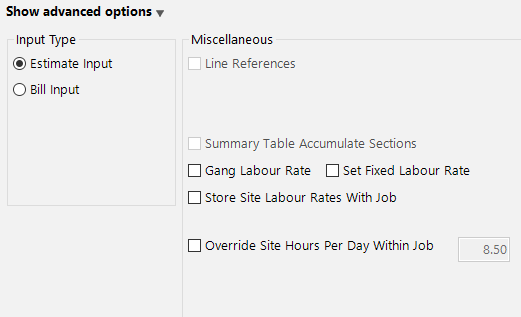
Labour factors require the Set Fixed Labour Rate option to be unticked. This is the same setting used for multiple labour rates.
- 1
Go to the job header page.
- 2
Click Show Advanced Options.
- 3
Untick the Set Fixed Labour Rate toggle.
Setting a default site difficulty factor
You can set a default site difficulty factor that applies to all sections of the current job.
- 1
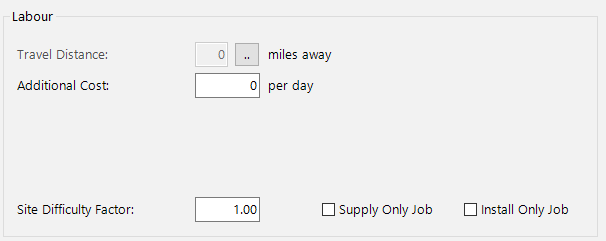
On the job header page (with advanced options visible), locate the Site Difficulty Factor field.
- 2
Enter your desired factor:
- 1.00 — standard installation time (the default)
- 1.50 — time and a half
- 2.00 — double the installation time
- Any decimal value is accepted
- 3
Click Continue to proceed to the take-off page. All sections will now reflect the updated factor.
If you only need to adjust specific sections rather than the entire job, leave the default at 1.00 and change individual sections on the take-off page instead.
Adjusting the site factor per section
Once you are on the take-off page, the Site Factor value is displayed at the top of the screen above the Examine Grid.

- 1
Open the section you want to adjust by selecting it in the sectional structure.
- 2
Change the Site Factor value displayed above the Examine Grid. This change only affects the current section — each section can have its own site factor.
On some versions of the software, the total labour values at the bottom of the Examine Grid update immediately to reflect your changes.
Adjusting the task factor per item
For finer control, you can set a custom Task Factor on individual items.
- 1
Ensure you have followed the setup steps above (Set Fixed Labour Rate unticked).
- 2
On the take-off page, look for the TF (Task Factor) column in the Examine Grid.

- 3
Click on the TF value for any item and overtype it with your desired factor.
We recommend using the task factor rather than directly overriding an item's labour hours. Changing the individual labour hours affects the entire job's installation time calculation, whereas the task factor adjusts only the selected line item proportionally.
How factors affect your estimate
| Factor type | Scope | Example |
|---|---|---|
| Site factor (on job header) | All sections in the job | Set to 1.50 to add 50% to all labour hours across every section |
| Site factor (per section) | One section only | Increase the ceiling void section to 2.00 while keeping ground floor at 1.00 |
| Task factor (per item) | One line item only | Set a specific item to 1.25 because it requires extra fixings |
Both site factors and task factors affect the schedule of rates. Make sure your SOR is organised into sections so you can clearly see the impact of any factor changes.
Next steps
- Multiple Labour Rates — use different hourly rates within the same job
- Setting Up Labour Rates — manage your master list of labour rates