

Overview
By default, Ensign applies a single labour rate to every item in a job. However, many projects require different rates — for example, standard hours during the day and overtime rates for out-of-hours work. Ensign lets you assign different labour rates to individual items or groups of items within the same estimate.
Prerequisites
Before you can use multiple rates on a job, you need:
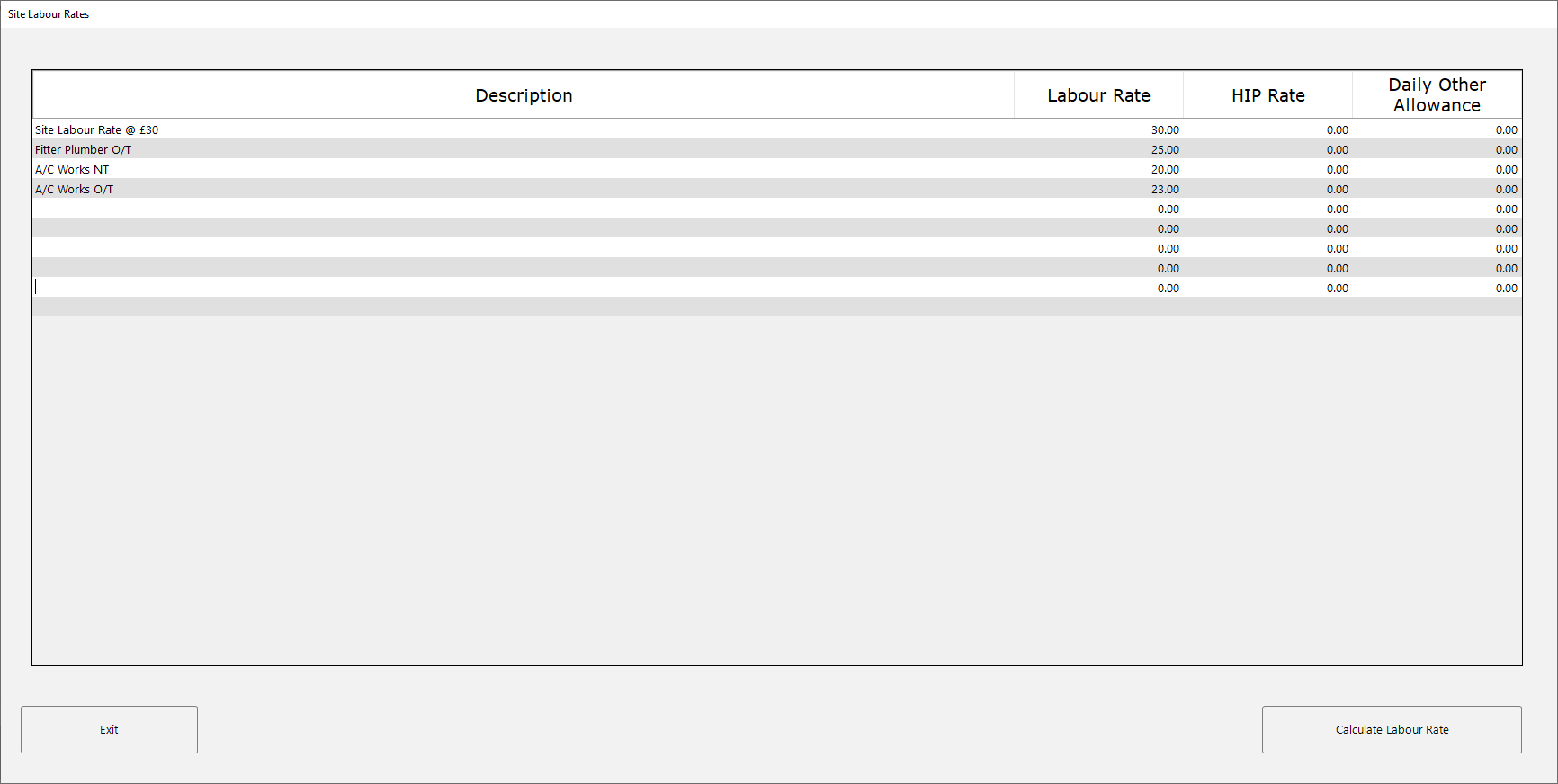
- Multiple labour rates set up in your data. You can create them via Tools > Miscellaneous File > Labour Rates or from the job header page. See the Setting Up Labour Rates guide for details.
- The Set Fixed Labour Rate option disabled. This unlocks the ability to use more than one rate on a job.
Enabling multiple rates on a job
- 1
Go to the job header page for your job.
- 2
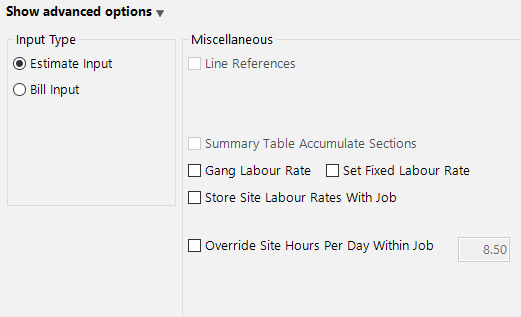
Click Show Advanced Options at the bottom of the screen.
- 3
Untick the Set Fixed Labour Rate checkbox.
- 4
Click Continue to proceed to the take-off page.
Selecting a labour rate for new items
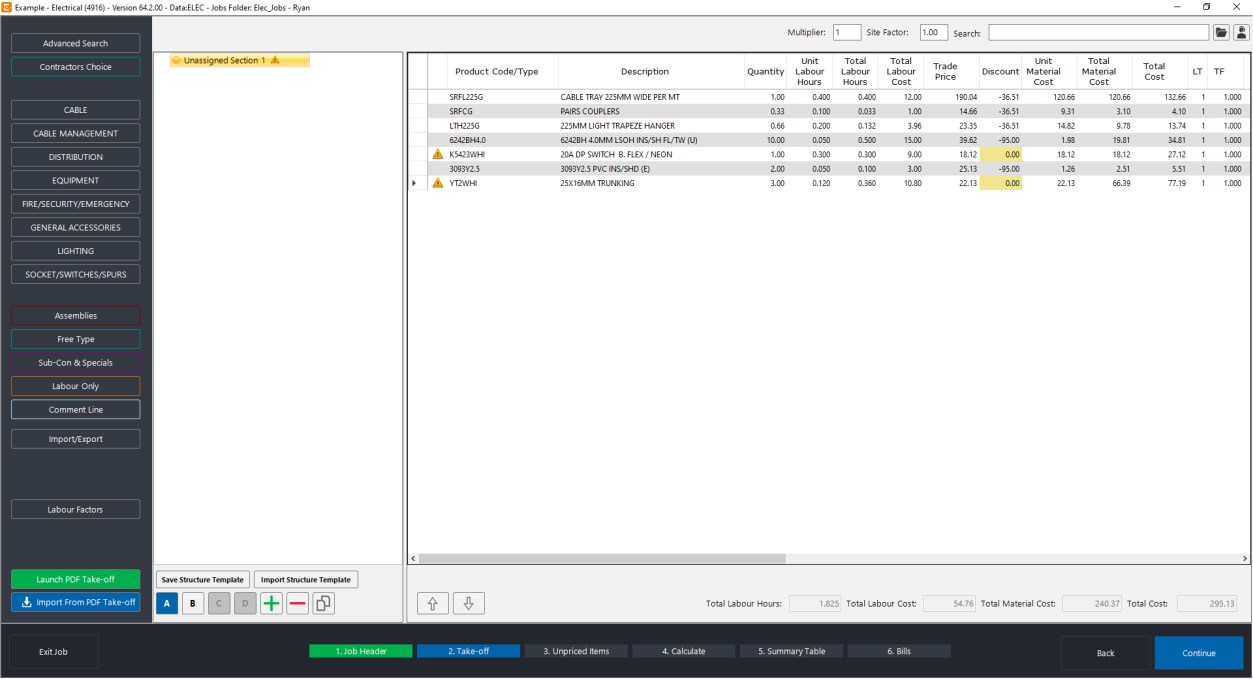
Once multiple rates are enabled, you will see a Labour Factors button in the bottom-left corner of the take-off page.
- 1
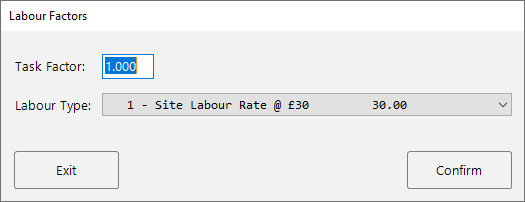
Click the Labour Factors button. A popup appears showing the current Task Factor and a Labour Type dropdown.
- 2
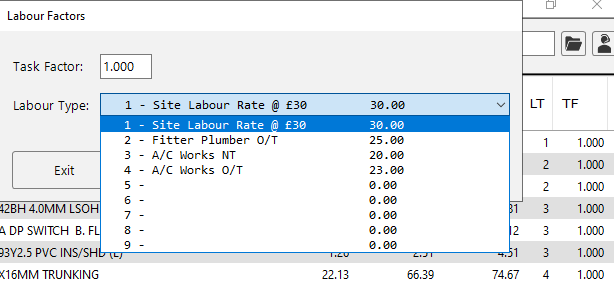
Select the labour rate you want to apply from the Labour Type dropdown. The dropdown lists all the rates you have set up, each with a number and its hourly cost.
- 3
Click Confirm. Any items you input from this point forward will use the selected labour rate.
Understanding the LT column
With multiple rates enabled, two new columns appear in the Examine Grid:
- LT (Labour Type) — displays the labour type number assigned to each item.
- TF (Task Factor) — displays the task factor applied to each item.
You can see at a glance which rate is assigned to every line in your estimate.
Changing the rate on existing items
Editing individual items
You can overtype the LT column value directly in the Examine Grid. Simply click on the LT number for the item and change it to the number corresponding to your preferred labour rate.
Bulk editing with Change By Range
To change the labour rate for multiple items at once:
- 1
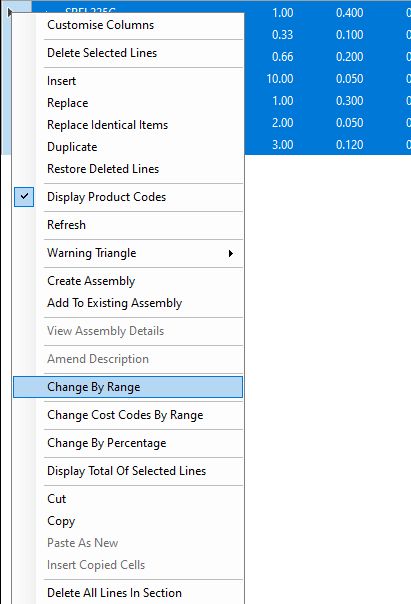
Highlight the items you want to change in the Examine Grid.
- 2
Right-click and select Change By Range.
- 3
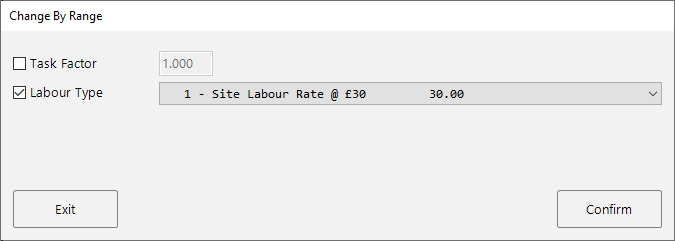
In the Change By Range popup, tick the Labour Type checkbox and select your preferred rate from the dropdown.
- 4
Click Confirm to apply the change to all selected items.
The Change By Range feature is the fastest way to reassign labour rates across large sections of your estimate. Highlight everything you need, make one change, and it updates them all.
How it appears on the summary table
When you use multiple labour rates, the summary table on the calculate page breaks down your site labour cost by each rate. This gives you a clear view of how much labour cost is attributed to each rate type and allows you to apply different on-cost percentages to each one if needed.
Next steps
- Setting Up Labour Rates — create and manage your rate options
- Labour Factors — adjust installation hours using site difficulty factors
- Job-Specific Labour Rates — store custom rates with a single job