

Why combine quotations?
Ensign allows you to merge two separate quotations into a single bill document. This is useful when a project spans multiple trades or disciplines — for example, combining a mechanical quotation with an electrical quotation to produce one unified tender for your client.
You can combine quotations generated within the same trade or across different trades (e.g. mechanical and electrical).
Both quotations must have bills of quantities already generated at Stage 6 — Bills before you can combine them. If either job has not reached the bills stage, the merge function will not work.
Merging two quotations
- 1
Open the bills stage
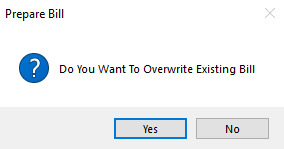
Navigate to Stage 6 — Bills for your current job. You may see a prompt asking "Do You Want To Overwrite Existing Bill". Press No — this preserves your existing bill and takes you to the Prepare Bill of Materials page where you can access the merge function.
- 2
Open the Merge Bills screen
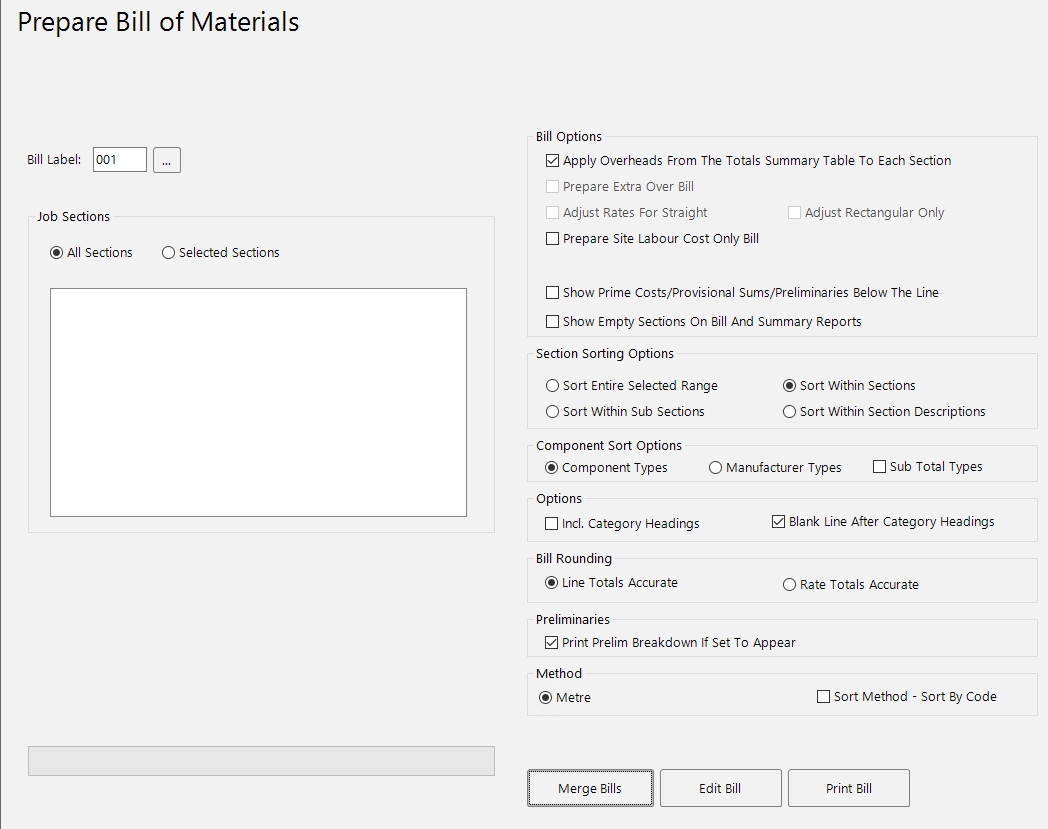
At the bottom of the Prepare Bill of Materials page, click the Merge Bills button to open the merge interface.
- 3
Add your current bill
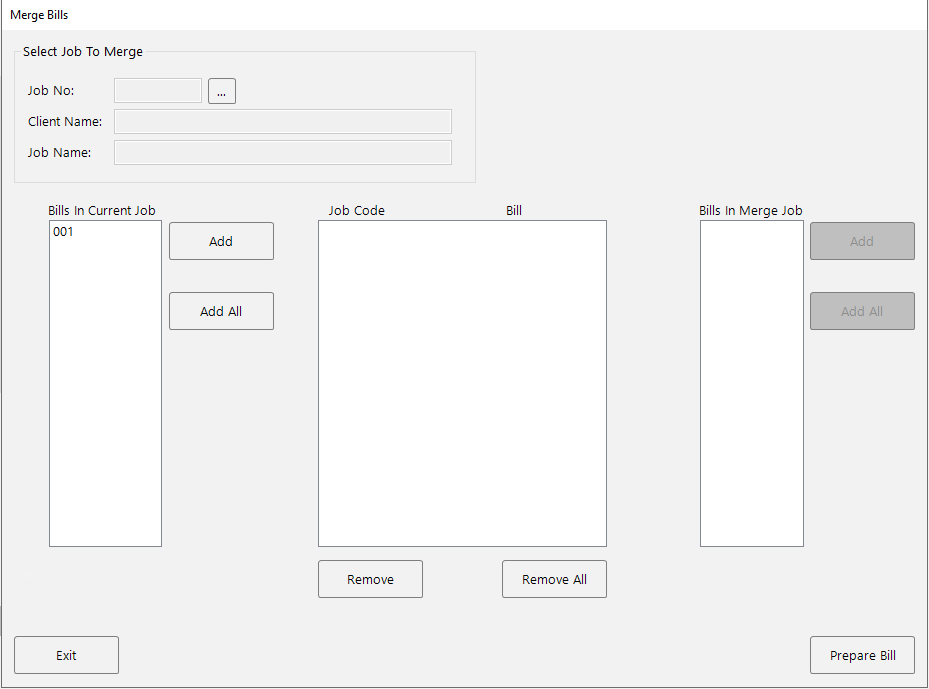
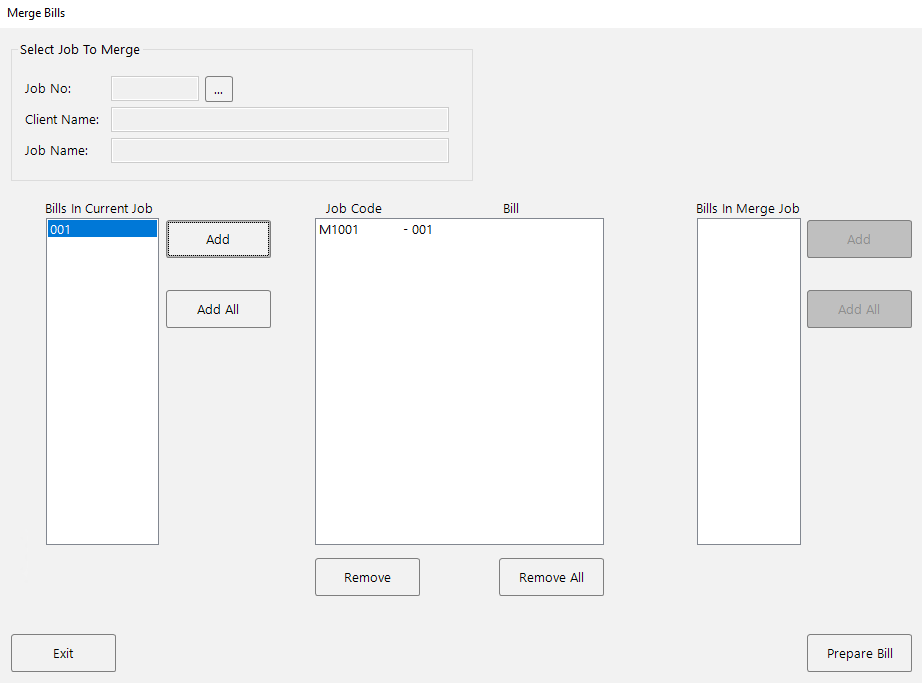
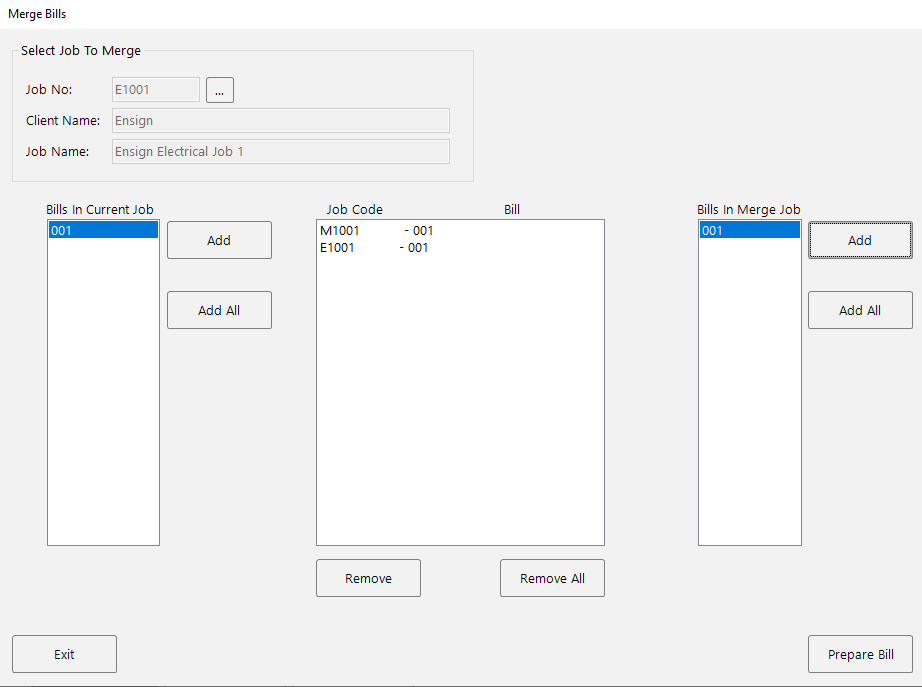
In the Merge Bills screen, your existing bill appears under Bills In Current Job on the left-hand side. Highlight the bill number (e.g. 001) and press Add. The bill label moves to the centre grid, confirming it has been queued for merging.
- 4
Select the job to merge
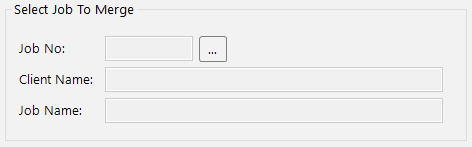
In the Select Job To Merge section at the top of the screen, click the Job No browse button (...) to open the job selection window.
- 5
Choose the second job
The Select Job window displays your existing jobs. If the job you need is from a different trade, use the System dropdown at the bottom right to switch between trades (e.g. from Mechanical to Electrical). Once you have found the correct job, double-click it to confirm your selection.
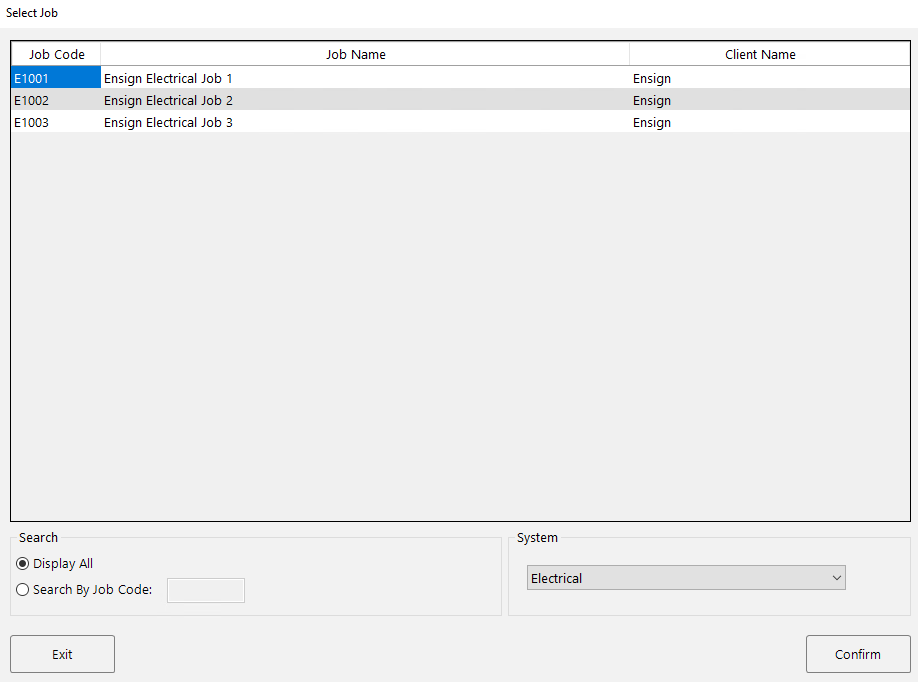
Use the Search By Job Code option at the bottom left of the window to locate a specific job quickly if you have a long list.
- 6
Add the second bill and prepare
You are returned to the Merge Bills screen. The second job's bill now appears under Bills In Merge Job on the right-hand side. Highlight it and press Add to queue it alongside your first bill in the centre grid.
Once both bills are listed in the centre, click Prepare Bill to generate the combined document.
- 7
Review the merged bill
The software generates the merged bill on screen. You can now view and export the combined section summary or any of the quantified schedules of rates as a single unified document.
After merging, review the combined bill carefully before sending it to your client. Ensure that section headings and totals from both original quotations are displaying correctly in the merged output.