

Overview
Whenever you generate a report or bill in Ensign, you can export it in a range of file formats. Exported files are saved to your Ensign cloud storage, from where you can copy them to your local machine or company network.
There are two methods for exporting: a quick export from the preview window, and a more detailed export using the Save Report dialog.
Method 1 — Quick export from the preview window
This is the fastest way to export a document you are already viewing.
- 1
Generate any report or bill so that it appears in the preview window.
- 2
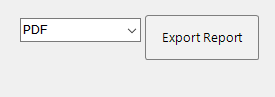
Look at the bottom-right corner of the preview window. You will see a file format dropdown — by default this is set to PDF.
- 3
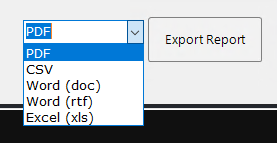
Click the dropdown to view all available formats and select your preferred option.
- 4
Click Export Report. The cloud storage window opens so you can choose where to save the file.
- 5
Rename the file if needed, then click Save.
Method 2 — Export from the report viewer toolbar
You can also export directly from the report viewer toolbar, which gives you access to more file format options.
- 1
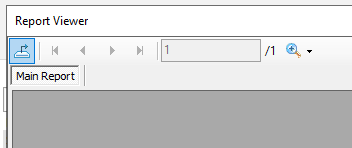
With a report or bill open in the preview window, click the Export Report button in the top-left corner of the screen (the toolbar area).
- 2
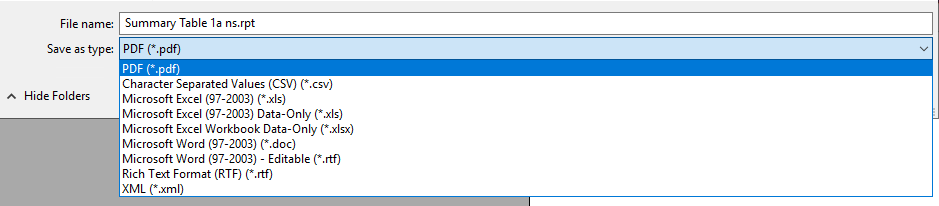
The Save Report window appears. At the bottom-right corner, you will find the Save as type dropdown with the full list of available formats.
- 3
Select your preferred format, choose a save location within your cloud storage, and click Save.
Available file formats
| Format | Extension | Best used for |
|---|---|---|
.pdf | Client-facing documents, tender submissions, archiving | |
| CSV | .csv | Importing data into spreadsheets or other systems |
| Microsoft Excel | .xls | General spreadsheet use |
| Microsoft Excel (Data Only) | .xls | Clean data export without formatting — best for data handling |
| Microsoft Excel Workbook (Data Only) | .xlsx | Same as above in the newer Excel format |
| Microsoft Word | .doc | Editable documents for further formatting |
| Microsoft Word (Editable) | .rtf | Rich text format, widely compatible with word processors |
| Rich Text Format | .rtf | An alternative to Word format for broad compatibility |
| XML | .xml | Structured data exchange with other software systems |
If you are exporting bills to Excel for data handling or importing into another system, choose the Data Only option. It produces a cleaner spreadsheet without report formatting, making it much easier to work with.
Copying files from cloud storage to your machine
After saving an export, Ensign automatically opens your cloud storage so you can transfer the file to your local computer.
- 1
Your cloud storage window will appear showing the folder where the file was saved. Ensign automatically creates a folder named after your job for easy organisation.
- 2
Right-click the exported file and select Copy.
- 3
Minimise the cloud storage window to return to your desktop.
- 4
Right-click on your desktop (or navigate to your preferred folder) and select Paste.
If your company network drives are mapped to the cloud environment, you can drag and drop files directly onto those drives without needing to use copy and paste.
Where are exported files stored?
All exported reports and bills are saved to the Reports folder within your Ensign cloud storage. The software automatically creates a subfolder for each job using the job code and name, keeping your documents organised.
You can access your cloud storage at any time by clicking the Cloud Documents button on the support tab of the main Ensign screen.