

At the bottom of the Markup & Profit section on the summary table, you will find the Gross Profit percentage. This indicator tells you what proportion of your gross contract cost represents your total markup. You can also use it to work backwards from a desired return or sell-out figure.
Understanding the gross profit indicator
The gross profit percentage is not something you enter directly -- it is a calculated figure. It shows what proportion of your final sell-out price (the gross contract cost) represents your total markup (overhead plus profit plus on-cost). The remaining amount covers your labour and material costs.
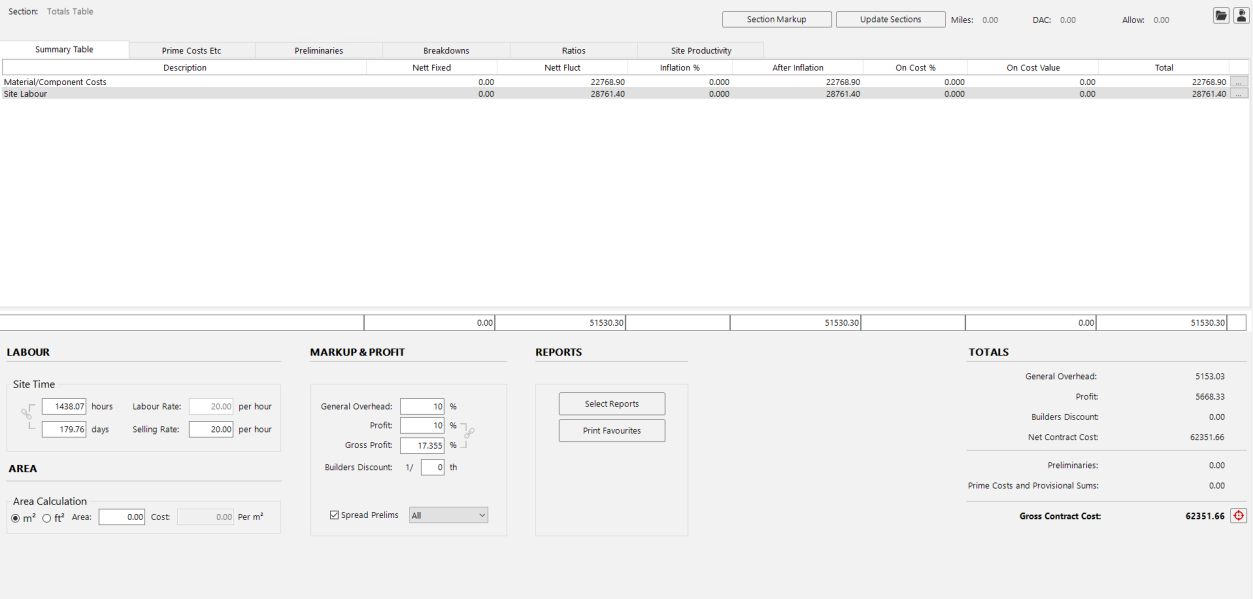
For example, if you apply 20% markup across the board, the gross profit will show approximately 16.67%. This is because the markup is a portion of the final sell-out price, not just the cost.
To understand the difference between markup and return, consider a simple example. If an item costs you 1 and you add 100% markup, the sell-out price is 2. Your return is 50% of the sell-out price (you keep 1 out of 2), not 100%. The gross profit indicator always shows your return as a percentage of the sell-out price, which is the figure most businesses use to track profitability.
Using gross profit as a sanity check
The gross profit indicator is a useful check against accidental over-markup. If you know your standard markup produces a return between 16% and 23%, and the indicator shows 36%, you have likely applied markup in both the on-cost percentages and the overhead/profit fields.
For example:
- 20% markup across the board produces approximately 16.67% gross profit.
- 30% markup across the board produces approximately 23% gross profit.
- If your gross profit shows a figure well outside your expected range, review where your percentages have been applied.
Keep an eye on the gross profit indicator whenever you adjust your markup. It gives you an immediate sense of whether your return is in the expected range, regardless of which markup method you are using -- on-cost percentages, overhead and profit, section markup, or cost codes.
Using gross profit as a target
You can use the gross profit field to work backwards from a desired return percentage:
- 1
Click on the Gross Profit field and enter the return percentage you want to achieve -- for example,
24. - 2
The software calculates the required uplift and adjusts the profit percentage automatically. It tells you exactly how much extra needs to be added to reach your target return. For instance, if you enter 24%, the software might determine that you need a 25% uplift to achieve that return.
- 3
The gross contract cost updates to reflect the new figure. You can review the adjusted profit in the Totals panel to confirm you are comfortable with the result.
This is particularly helpful when you have already applied some markup (via on-cost percentages or overhead) and want to fine-tune the final return. Enter your desired gross profit, and the software calculates the remaining uplift needed to reach that figure.
You can adjust the gross profit target incrementally. If 24% looks right but the gross contract cost is slightly higher than you would like, try 23% or 22% and compare the results. The software recalculates instantly each time.
Setting a target gross contract cost
If you have a specific sell-out figure in mind for the whole project -- for example, you know the client's budget is 12,000 -- you can enter that directly and let the software work out the required markup.
- 1
Click the small button next to the Gross Contract Cost figure at the bottom-right of the Totals panel.
- 2
Enter the total amount you want to sell the project for (e.g.
12000) and press Continue. - 3
The software works backwards, calculating the required profit percentage and spreading it across the project to reach your target figure. It shows you how much additional profit is needed and what gross profit percentage that equates to.
For example, if your current gross contract cost is 10,500 and you enter a target of 12,000, the software calculates that you need an additional 13% uplift, which would give you a 32% return. You can then decide whether that margin is appropriate or adjust accordingly.
If the required markup seems too high after setting a target, you can zero out the profit field to return to your original figures and try smaller adjustments instead. The target gross contract cost feature works alongside any existing markup you have applied -- it simply adds the extra profit needed to reach your specified figure.
The target gross contract cost feature is also available at the section level within section markup. You can set a target sell-out for individual sections as well as for the whole project.
Next steps
- Overhead and profit -- apply general overhead and profit percentages.
- Builders discount -- apply builders discount as a fraction or percentage.
- Section markup -- apply different markup to each section of your project.
- Preliminary costs -- add fixed, time-related, and percentage preliminary costs.