

Preliminary costs cover the items you need to run a project that are not directly tied to materials or labour -- things like site accommodation, temporary services, insurances, and supervision. They are added on top of your marked-up project total and appear after the net contract cost on the summary table, feeding into the final gross contract cost.
Accessing the preliminaries tab
- 1
Open your project and navigate to the Summary Table (stage 5). You can reach it from the Select Start Point screen by clicking Summary Table, or by continuing forward from the calculate stage.
- 2
Click the Preliminaries tab along the top of the summary table. On some versions of the software this tab sits alongside Breakdowns, Ratios, and Site Productivity.
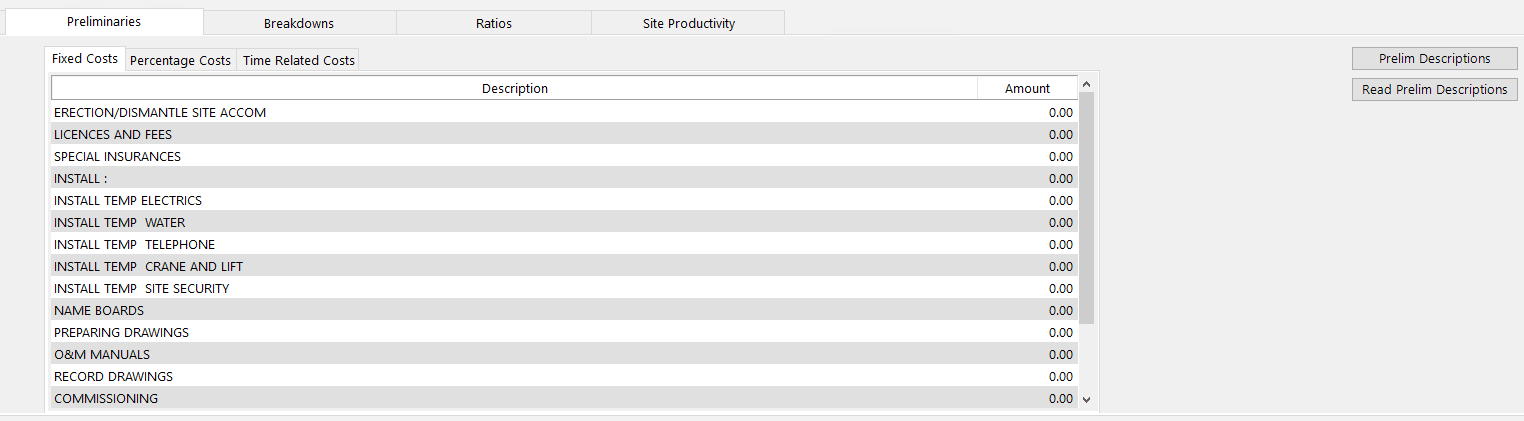
The preliminaries screen has three sub-tabs, each representing a different type of preliminary cost. Two buttons sit in the top-right corner: Prelim Descriptions (for editing default descriptions) and Read Prelim Descriptions (for reloading the master descriptions into the current job).
Three types of preliminary cost
Fixed costs
Fixed costs are one-off lump sum amounts that do not vary with the length of the project. You simply type a value into the Amount column next to the relevant description.
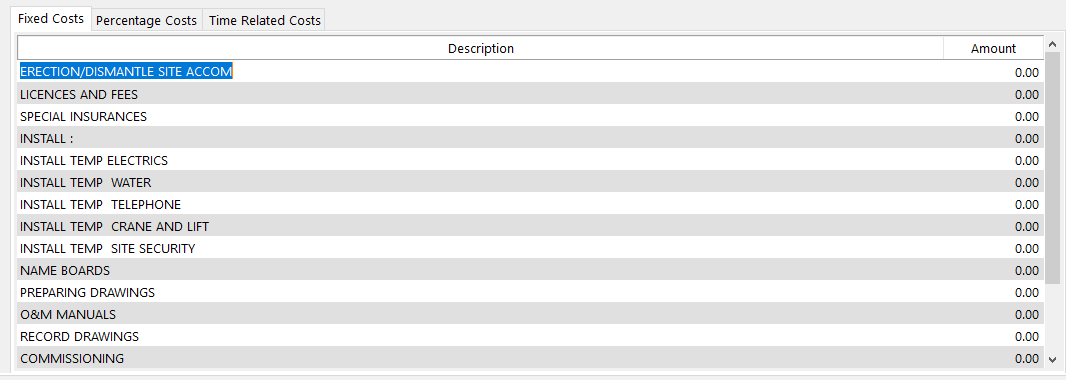
The software comes with a set of default fixed cost descriptions. Common examples include:
- Erection and dismantling of site accommodation
- Licences and fees
- Special insurances
- Installation of temporary electrics, water, or telephone
- Installation of temporary crane and lift
- Installation of temporary site security
- Name boards
- Preparing drawings
- O&M manuals
- Record drawings
- Commissioning
- Delivery
To add a fixed cost, type the amount directly into the Amount column next to the relevant description. Any description you do not need can simply be left at zero -- it will not appear in your totals.
Time-related costs
Time-related costs are calculated from a weekly rate multiplied by the number of weeks the work will take. This is useful for any preliminary that recurs on a weekly basis throughout the project duration.
Examples include:
- Site accommodation rental
- Welfare facilities
- Security and CCTV
- Temporary lighting
Enter the weekly rate and the number of weeks for each item. The software calculates the total automatically. If the project duration changes, you only need to update the weeks column and all time-related prelims recalculate accordingly.
Percentage costs
Percentage costs allow you to enter a base value and then apply a percentage of that value as a preliminary allowance. This is ideal for items that scale in proportion to another cost on the project.
Common uses include:
- Small tools and leads (as a percentage of the materials cost)
- Non-working foreman (as a percentage of the labour cost)
- Performance bonds (as a percentage of the contract value)
Enter the base value and the percentage. The software calculates the allowance for you.
You can see all three types of preliminary listed together in the Preliminary Descriptions pop-up. Fixed cost descriptions, percentage cost descriptions, and time-related cost descriptions each have their own tab, but they all contribute to the single Preliminaries total on the main summary table.
Showing vs spreading prelims
For all three types of preliminary cost, you have the choice to show or spread them on your final tender documents.
| Option | Behaviour |
|---|---|
| Show | The preliminary cost appears as a separate line item on the tender summary and bill of quantities. The client sees exactly what you have allowed for each prelim. |
| Spread | The preliminary cost is distributed proportionally across all sections of the job. The client does not see a separate prelim line -- the cost is absorbed into the section prices. |
You control this using the Show/Spread toggle on the summary table. It can be set per prelim item or globally using the Spread Prelims dropdown at the bottom of the main summary table view.
Use Spread when you do not want to reveal your preliminary allowances to the client. Use Show when the contract requires a visible breakdown of prelims or when you want the client to see the full detail.
When prelims are spread, internal reports such as the Tender Profit Summary will still show you the exact amount of prelims allocated to each section of the job, so you retain full visibility even though the client does not see a separate prelim line.
Editing preliminary descriptions
The descriptions that appear on the Preliminaries tab are loaded from a master list of defaults. You can work with them in three ways:
- Overtype for the current job only -- change any description directly on the Preliminaries tab. This affects only the open project.
- Edit the master defaults from inside a job -- use the Prelim Descriptions button to change descriptions for all future jobs.
- Edit the master defaults from the home screen -- use the Miscellaneous File route to change descriptions without opening a job.
Overtyping for the current job
On the Preliminaries tab, click any description text and type over it. The change applies only to this project and does not affect your master defaults or any other job.
Method 1 -- editing defaults from inside a job
- 1
Navigate to the Preliminaries tab on the summary table.
- 2
Click the Prelim Descriptions button in the top-right corner of the screen.
- 3
A pop-up window opens showing all default descriptions in a single-column list. Overtype any description you want to change.
- 4
Switch between the Fixed Costs, Percentage Costs, and Time Related Costs tabs within the pop-up to edit descriptions for each type.
- 5
Press Exit to save. The updated descriptions will be used for all new jobs going forward.
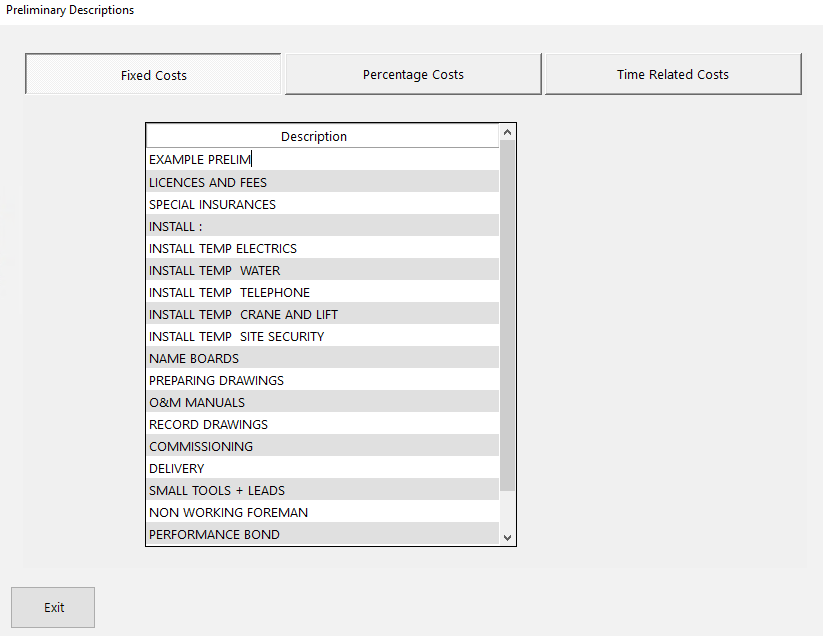
The pop-up displays a comprehensive list that includes fixed cost items (such as erection/dismantle site accommodation, licences and fees, special insurances, temporary services, name boards, preparing drawings, O&M manuals, record drawings, and commissioning), percentage cost items (such as small tools and leads, non-working foreman, and performance bond), and time-related cost items. All can be overtyped to suit your business.
Method 2 -- editing defaults from the home screen
- 1
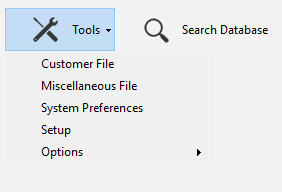
From the main screen, go to Tools > Miscellaneous File.
- 2
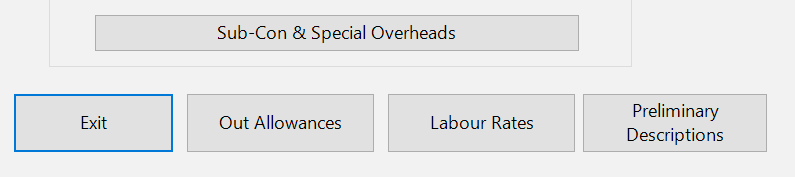
Click the Preliminary Descriptions button in the bottom-left area of the screen. It sits alongside the Exit, Out Allowances, and Labour Rates buttons.
- 3
Edit your descriptions in the same pop-up window as Method 1. Switch between the Fixed Costs, Percentage Costs, and Time Related Costs tabs as needed, then press Exit to save.
Permanently changing your prelim descriptions does not automatically update descriptions in existing jobs. Only new jobs created after the change will use the updated descriptions. If you need the updated descriptions in an existing job, you can use the Read Prelim Descriptions button on the Preliminaries tab to reload the master defaults into that project.
How preliminary costs appear in totals
On the main summary table view, the Totals panel on the right includes a Preliminaries line that shows the combined total of all your fixed, time-related, and percentage prelim items. This sits below the net contract cost (after overhead, profit, and builders discount have been applied) and is added to any prime costs and provisional sums to produce the Gross Contract Cost -- the final tender figure.
If you are using the accumulate sections setting, you still add your preliminaries in the usual way on the Preliminaries tab. Prelims and prime costs are not affected by the accumulate sections function and are always entered separately.
Next steps
- Prime costs and provisional sums -- add prime costs, provisional sums, and contingencies.
- Using the summary table -- review the overall layout and cost-to-sell path.
- Overhead and profit -- apply general overhead and profit percentages.
- Builders discount -- apply builders discount as a fraction or percentage.
- Inflation column -- adjust base costs for volatile prices and labour rounding.