

The on-cost percentage column at the top of the summary table lets you apply a separate markup to each material category. This gives you fine-grained control over pricing -- you can mark up expensive cable at a lower rate to stay competitive while adding a higher margin to standard accessories.
Applying on-cost percentages to materials
- 1
Open your project and navigate to the Summary Table (stage 5).
- 2
Locate the On Cost % column in the upper section of the screen. Each material category used in your project has its own row.
- 3
Click into the On Cost % cell for the category you want to mark up and enter your desired percentage. For example, enter
20to apply a 20% markup. - 4
Repeat for each material category. You can set different percentages for different categories -- for instance, 20% on general electrical materials, 15% on fire and security, and 10% on cable.
- 5
The On Cost Value and Total columns update automatically to show the monetary effect and the new sell-out value for each category.
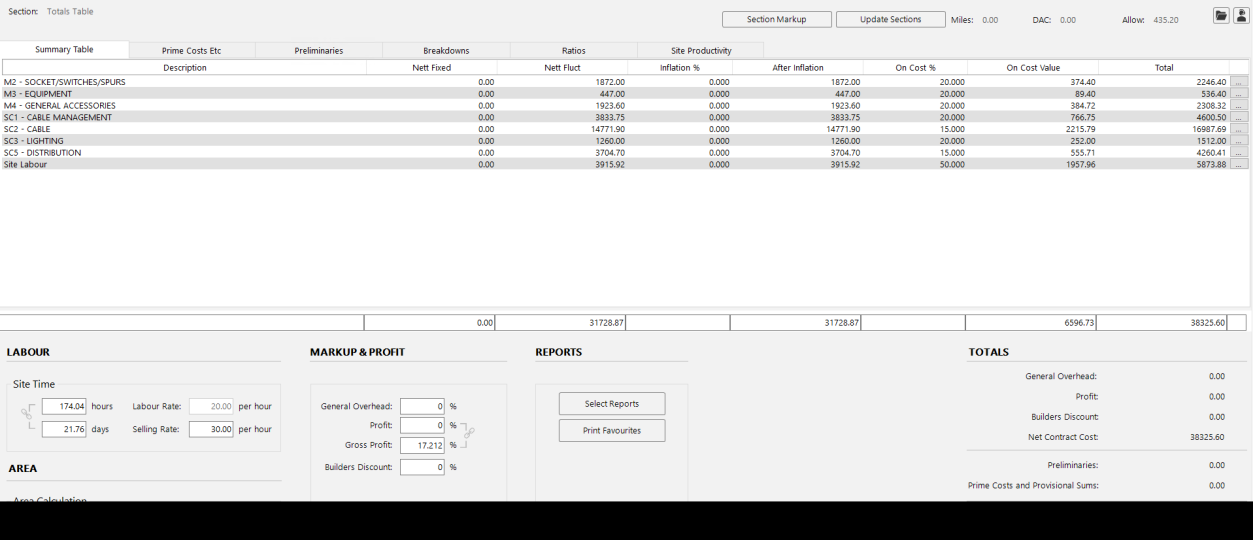
You do not have to mark up every category by the same amount. Varying your percentages lets you stay competitive on price-sensitive items while protecting your margin on others.
Material breakdown by component
For more granular control, open the Breakdowns tab at the top of the summary table and select Component Breakdown. This shows every individual component type used in your project (e.g. copper tube, steel tube, drainage pipe) with its own inflation and on-cost percentage columns.
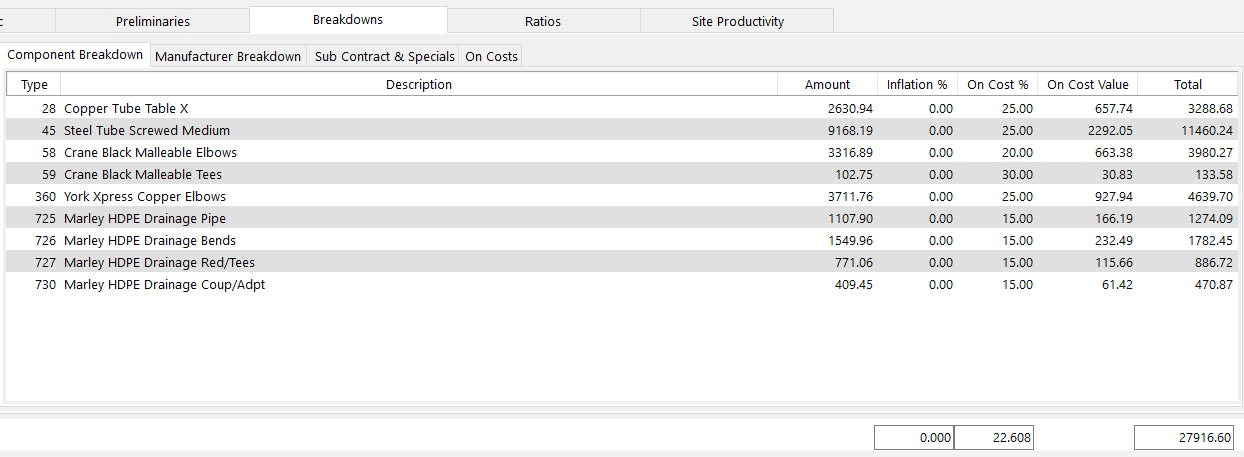
This level of detail is especially useful for mechanical and ductwork users where material types vary significantly in cost and volatility. You can apply different inflation and on-cost percentages to each component type, giving you precise control over how every material in your project is priced.
Use the component breakdown to identify expensive or volatile materials that need careful pricing. You might apply a lower markup to high-value items such as boilers or specialist equipment while maintaining a higher margin on standard fixings and sundries.
Choosing between on-cost percentages and overhead/profit
On-cost percentages are one of two primary approaches to markup on the summary table. Most users choose one method or combine them carefully:
- On-cost percentages (top of the screen) -- allows you to set different markup percentages for each material category and labour type individually. This is the approach covered on this page.
- General overhead and profit (bottom of the screen) -- applies broad percentages across the entire project total. See Overhead and profit for details.
You can combine both methods -- for example, using on-cost percentages to apply your profit per category and then using the general overhead field to add a consistent company overhead on top. However, if you use both methods in full, you risk marking up the job twice.
If you apply markup using on-cost percentages and general overhead and profit, keep a close eye on the gross profit indicator. If the return looks higher than expected, you have likely doubled up your markup somewhere.
Next steps
- Labour selling rate -- adjust the labour selling rate and mark up multiple labour types.
- Presetting default markup -- save your standard on-cost percentages so they are pre-filled on every new project.
- Overhead and profit -- apply general overhead and profit percentages.
- Subcontract and specials markup -- mark up subcontractor and specialist quotations.