

The summary table is the fifth stage of the estimating workflow. It is where you review your accumulated costs and apply all markup, overheads, profit, and additional allowances before producing your final tender figure.
How the screen is laid out
The summary table is read from top-left to bottom-right. The upper section shows your cost categories, while the lower section shows the markup controls and running totals.
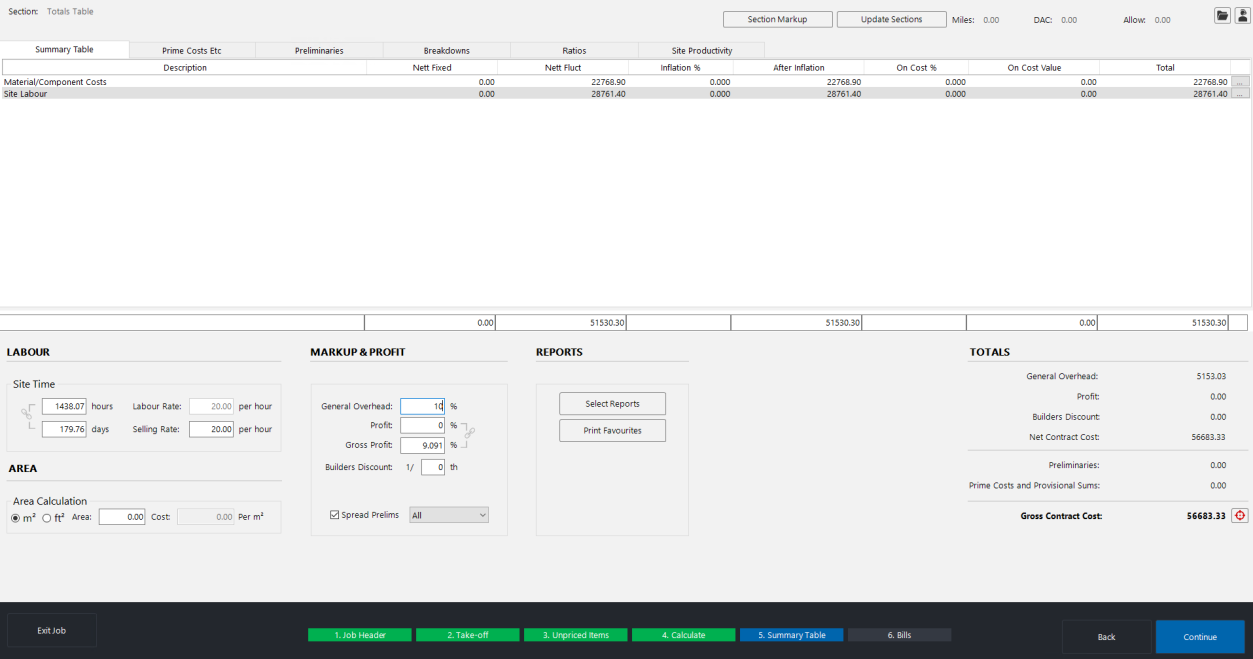
Upper section -- cost categories
The top of the screen lists every cost category used in your project. The exact headings depend on which trade package you are using:
| Package | Typical categories |
|---|---|
| Electrical | Lighting, small power, cable, cable management, fire & security, CCTV, site labour, subcontractors |
| Mechanical | Materials, sanitary, water storage, boilers, specialised materials, site labour |
| Ductwork | Site labour, shop labour, bought-out items, materials |
| Insulation | Site labour, materials |
Each category row displays the following columns:
- Nett Fixed -- the calculated net cost from your takeoff.
- Nett Float -- any floating (unconfirmed) cost element.
- Inflation % -- a percentage you can apply to adjust the base cost upward (see the inflation column guide for details).
- After Inflation -- the cost after any inflation has been applied.
- On Cost % -- the markup percentage for this category.
- On Cost Value -- the monetary value the on-cost percentage adds.
- Total -- the final sell-out value for this category.
Lower section -- markup and totals
Below the category grid you will find:
- Site Time -- the total hours and days the project is expected to take, along with your labour rate and selling rate.
- Markup & Profit -- the general overhead percentage, profit percentage, gross profit indicator, and builders discount.
- Reports -- quick-access buttons for Select Reports and Print Favourites.
- Totals -- a running summary on the right-hand side showing general overhead, profit, builders discount, net contract cost, preliminaries, prime costs and provisional sums, and the gross contract cost.
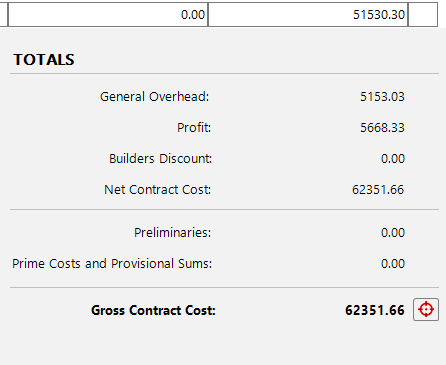
Reading the cost-to-sell path
The summary table follows a clear path from cost to sell:
- 1
Start at the top-left -- review your net costs across each material category and site labour.
- 2
Apply inflation (if needed) -- adjust any categories where you expect price changes before the project starts.
- 3
Apply on-cost percentages -- add your markup to individual categories, or leave these at zero if you prefer to use general overhead and profit instead.
- 4
Review the subtotal -- the marked-up figures accumulate into the subtotal row at the bottom of the category grid.
- 5
Apply general overhead and profit -- these percentages are applied to the accumulated subtotal.
- 6
Apply builders discount -- enter a fraction or percentage if required.
- 7
Add prelims, prime costs, and provisional sums -- these are added on top of the net contract cost.
- 8
Read the gross contract cost -- this is your final tender figure, shown at the bottom-right of the screen.
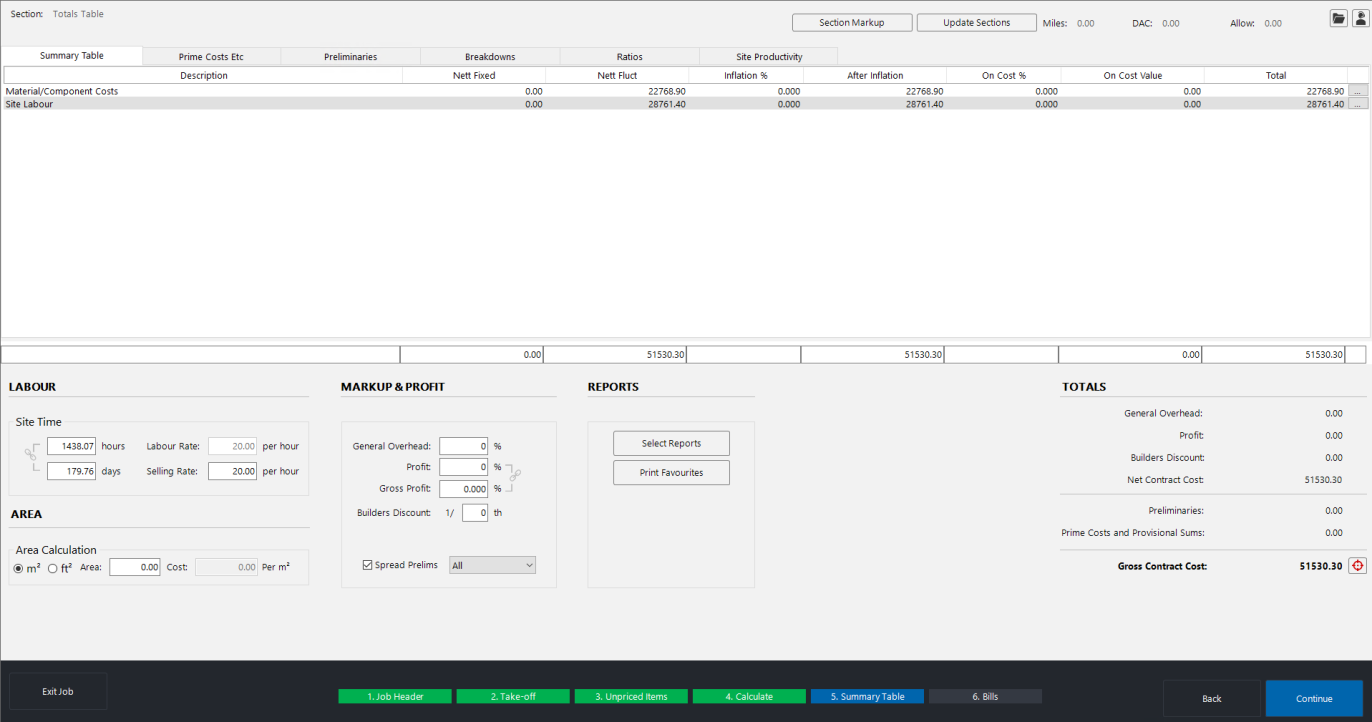
Adjusting site labour days and hours
If your project uses a single (fixed) labour rate, you can adjust the total days or hours directly on the summary table. Overtyping the days figure recalculates the labour cost accordingly.
For example, if the software calculates 15.94 days but you believe the project will take 20 days, simply type 20 into the days field. The cost will increase to reflect the additional time. This is treated as a cost adjustment (not a profit increase), so the extra amount appears in the inflation column.
If you are using multiple labour rates within a single project, you cannot overtype the total days on this screen. Instead, use the inflation percentage on the site labour line to adjust the cost upward.
Tabs along the top
The summary table has several tabs along the top of the screen:
- Summary Table -- the main view described above.
- Prime Costs Etc -- enter prime costs, provisional sums, and contingencies.
- Preliminaries -- add fixed, time-related, or percentage-based preliminary costs.
- Breakdowns -- view material breakdowns by component or manufacturer, and mark up subcontract and specials.
- Ratios -- see how your project costs are split between labour, materials, and other elements.
- Site Productivity -- calculate how many engineers and weeks the project will require at a given productivity level.
Two methods of markup
There are two primary approaches to applying markup on the summary table. Most users choose one or the other:
- On-cost percentages (top of the screen) -- allows you to set different markup percentages for each material category and labour type individually.
- General overhead and profit (bottom of the screen) -- applies broad percentages across the entire project total.
You can use both at the same time, but be careful not to double up your markup unintentionally. The gross profit indicator at the bottom of the screen helps you check whether your return looks reasonable.
If you apply markup using on-cost percentages and general overhead and profit, keep a close eye on the gross profit figure. If it looks higher than expected, you may have marked up the job twice.
Next steps
- Material on-cost percentages -- apply different on-cost percentages to each material category.
- Labour selling rate -- adjust the labour selling rate and mark up multiple labour types.
- Overhead and profit -- apply general overhead and profit percentages.
- Builders discount -- apply builders discount as a fraction or percentage.
- Inflation column -- adjust base costs for volatile prices and labour rounding.
- Preliminary costs -- add fixed, time-related, and percentage preliminary costs.
- Prime costs and provisional sums -- add prime costs, provisional sums, and contingencies.