

The lower section of the summary table provides fields for General Overhead and Profit. These are broad percentages that affect the entire project total, as opposed to the per-category on-cost percentages at the top of the screen.
General overhead
General overhead covers your company's running costs -- office rent, utilities, insurance, vehicles, administrative staff, and similar expenses that exist regardless of which project you are working on. This is typically a fixed percentage that you apply consistently across all jobs.
- 1
On the summary table, locate the General Overhead field in the Markup & Profit section (bottom-left of the screen).
- 2
Enter your overhead percentage. For example, enter
10for a 10% overhead. - 3
The software calculates the overhead based on the total accumulated cost of the project (including any on-cost percentages already applied in the upper section). The result appears in the Totals panel on the right under General Overhead.
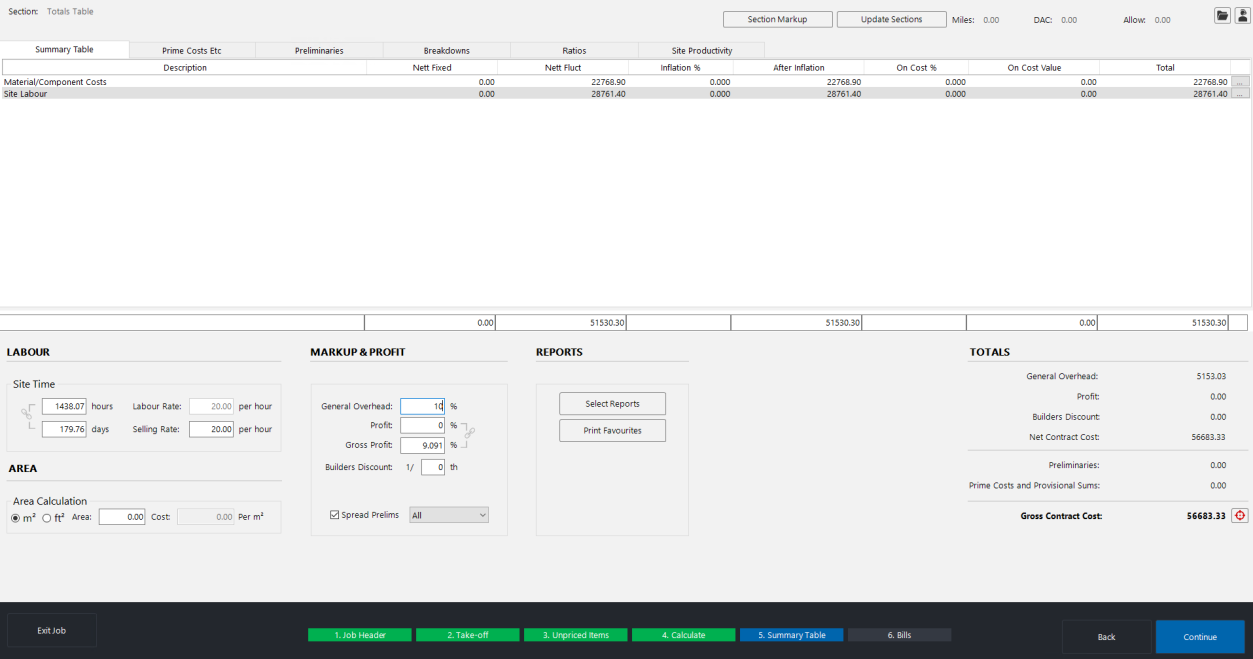
Because the overhead is applied to the accumulated subtotal, it compounds on top of any on-cost percentages you have already set. If your subtotal is 51,530 and you apply 10% overhead, the software adds 5,153 as your general overhead allowance.
Profit
The profit percentage represents the margin you want to achieve on the project. It is applied on top of the cost plus overhead.
- 1
Enter your desired profit percentage in the Profit field, directly below the general overhead field.
- 2
The profit is calculated on the total cost including the overhead amount. For example, if your project cost is 10,000 and you apply 10% overhead, the cost becomes 11,000. A 10% profit is then calculated on 11,000 (not the original 10,000), giving 1,100 profit.
- 3
The result appears in the Totals panel under Profit.
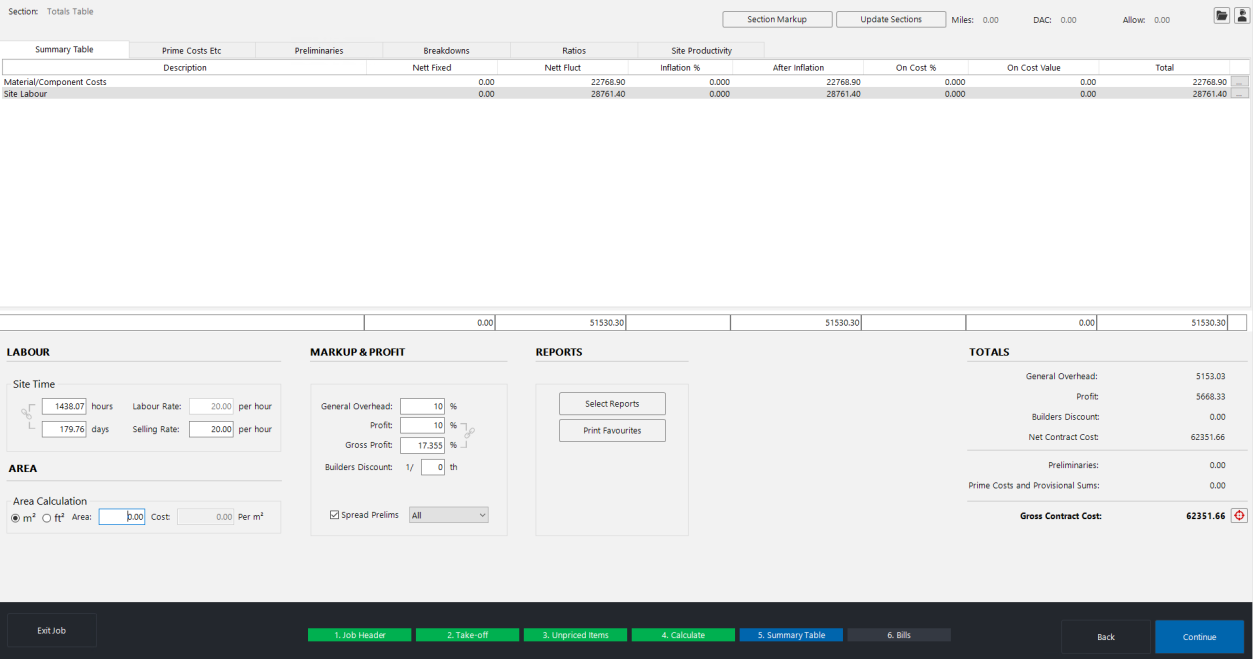
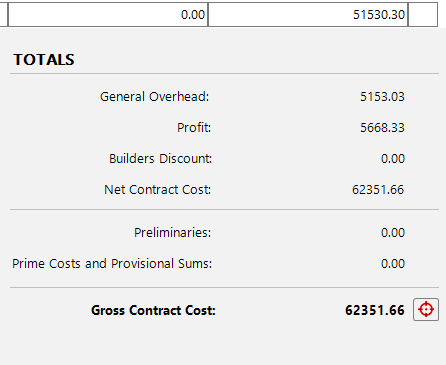
The Totals panel now shows a clear breakdown:
- General Overhead -- the overhead amount calculated from your percentage.
- Profit -- the profit amount calculated on top of the overhead.
- Net Contract Cost -- the sum of your project cost, overhead, and profit (before preliminaries and other additions).
Choosing between on-cost percentages and overhead/profit
The two most common approaches to markup are:
- On-cost percentages only -- you enter all your markup in the per-category on-cost fields at the top of the screen. This is useful when you want different margins on different material types and labour. See Material on-cost percentages for details.
- General overhead and profit only -- you leave the on-cost percentages at zero and enter your overhead and profit at the bottom. This gives you a single, uniform markup across the entire project.
You can combine both methods -- for example, using on-cost percentages to apply your profit per category and then using the general overhead field to add a consistent company overhead on top. However, if you use both methods in full, you risk marking up the job twice.
Some users prefer to apply their profit using the on-cost percentages at the top of the screen (so they can vary it by category) and then use only the general overhead field at the bottom to cover company overheads. This approach lets you keep overhead consistent while tailoring your profit by material type or labour group. Either method works -- just avoid applying markup in both places unintentionally.
If you apply markup using on-cost percentages and general overhead and profit, keep a close eye on the gross profit indicator. If it looks higher than expected, you have likely doubled up your markup somewhere.
Presetting overhead and profit defaults
You can save your standard overhead and profit percentages so they are pre-filled on every new project. See Presetting default markup for full instructions on using the Miscellaneous File.
Next steps
- Gross profit indicator and targets -- use the gross profit indicator as a sanity check and set target sell-out values.
- Material on-cost percentages -- apply different on-cost percentages to each material category.
- Builders discount -- apply builders discount as a fraction or percentage.
- Section markup -- apply different markup to each section of your project.
- Cost code markup -- group and mark up materials by your own cost code categories.