

Overview
When working with Ductwork, Mechanical, or Insulation takeoffs in Ensign X, you may need to correct details such as sizes, services, or descriptions across several lines at once. Rather than editing each line individually, you can use Change By Range to update multiple takeoff lines in one go.
Using Change By Range
- 1
Select the lines you want to edit
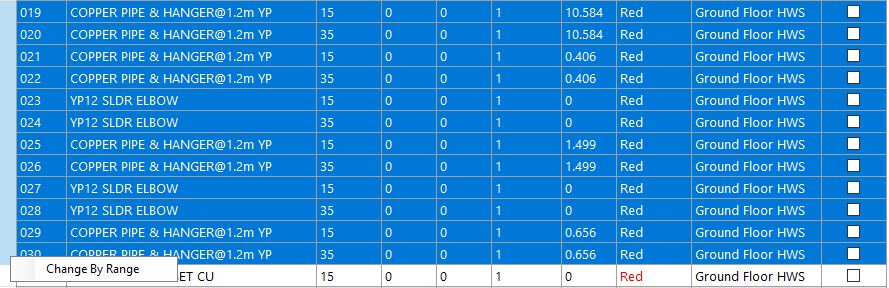
In the Examine Grid at the bottom of the screen, highlight the takeoff lines you want to change. You can select multiple lines by holding Ctrl or Shift while clicking.
- 2
Open Change By Range
Right-click on your selection and choose Change By Range from the context menu.
- 3
Choose what to change
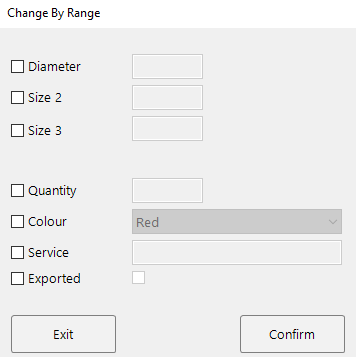
The Change By Range dialog lets you update several properties at once. Tick the boxes next to the fields you want to modify and enter the new values:
- Diameter — update the primary size
- Size 2 / Size 3 — update secondary sizes
- Quantity — change the quantity
- Colour — set the line colour
- Service — assign or change the service
- Exported — mark lines as exported or not
- 4
Confirm your changes
Click Confirm to apply the updates. The new values will be reflected immediately in the Examine Grid.
You only need to tick the fields you want to change — any unticked fields will remain as they are.