

Why items are marked as exported
Once you upload takeoff quantities using either import method, Ensign X marks those items as exported. This prevents you from accidentally re-importing the same data. It also means you can safely import any additional items that were missed the first time around without duplicating what has already been sent.
Re-importing your takeoff
There are two ways to change the import status of items so they can be re-uploaded: manually unticking individual items, or using the CLR GRID button to reset items in bulk.
Method 1 — Manually untick items in the Examine Grid
This method is best when you only need to re-import a small number of specific items.
- 1
Open the drawing in the PDF Takeoff screen and scroll down to the Examine Grid at the bottom.
- 2
Locate the Exported column. Each previously exported item will have a ticked checkbox.
- 3
Untick the checkbox for any item you want to re-import.
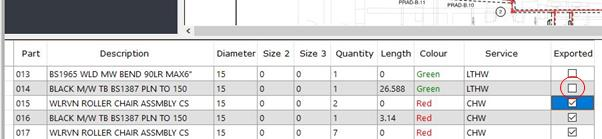
This approach is recommended for selective adjustments where only a few items need re-importing.
Method 2 — Use the CLR GRID button
Use this method when you need to re-import entire colours, services, or all items at once.
- 1
On the top toolbar of the PDF Takeoff screen, click the CLR GRID button.

- 1
In the Select Services dialogue that appears, tick the colours or services you want to re-import, then click Confirm.
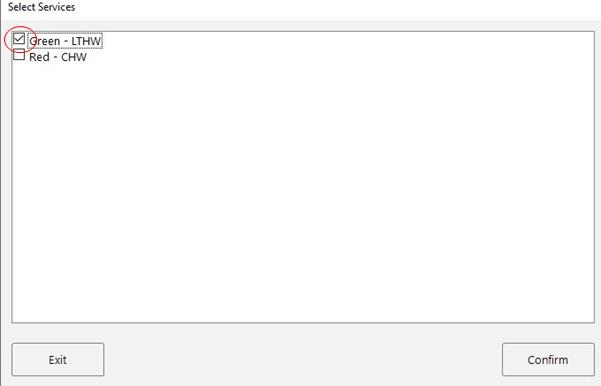
If you are using the SQL/SDF import method, you will need to reopen the drawing in the PDF Takeoff before re-importing.