

Overview
Before you can open drawings in Ensign X, you need to upload them to your cloud storage. There are two ways to do this depending on how you connect to the Ensign cloud environment: via Remote Desktop or via the Remote App. Both methods get your PDF drawings into the same cloud storage location.
Uploading via Remote Desktop
If you connect to the full cloud desktop environment, you can copy and paste drawings directly into the cloud storage folder.
- 1
On your local computer, navigate to where your PDF drawings are stored. Right-click the drawing(s) and select Copy.

- 2
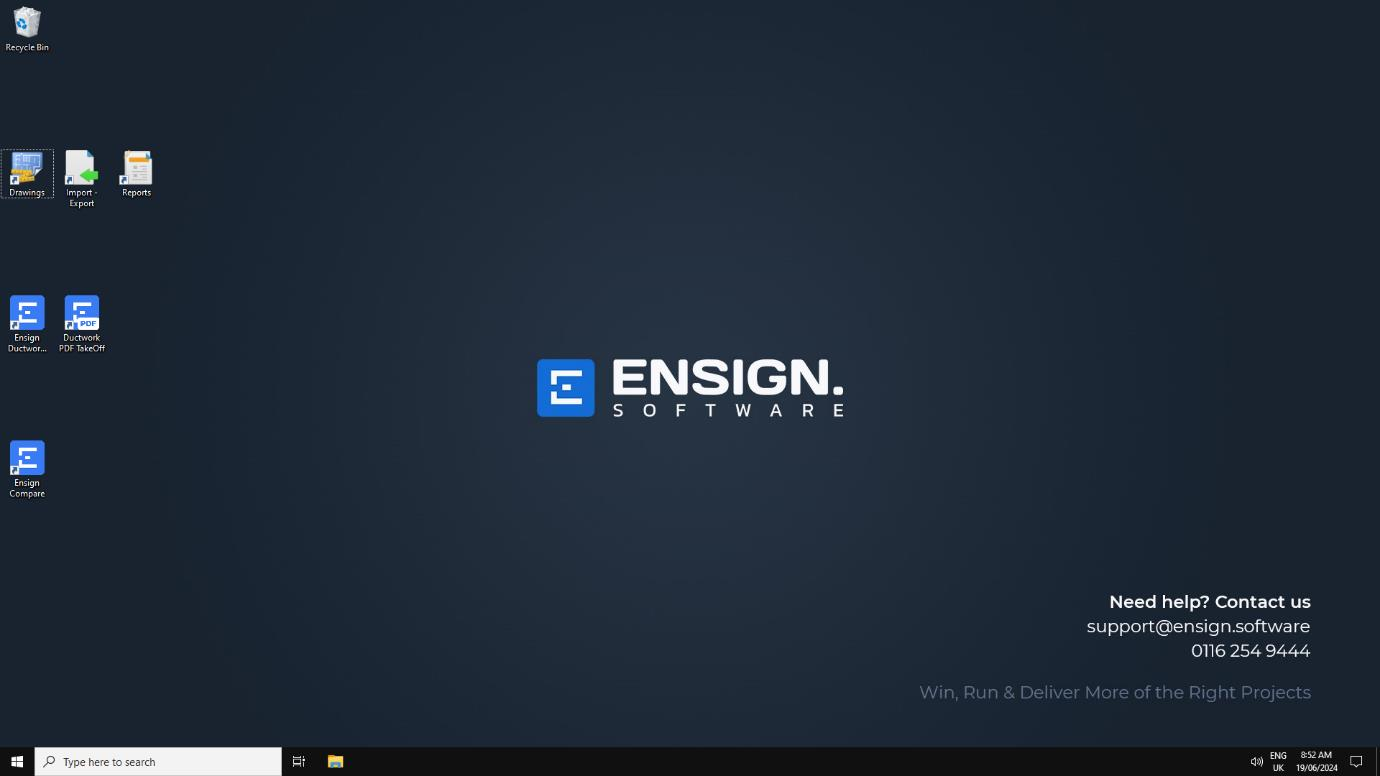
Switch to your cloud desktop environment and open the Drawings folder within your cloud documents.
- 3
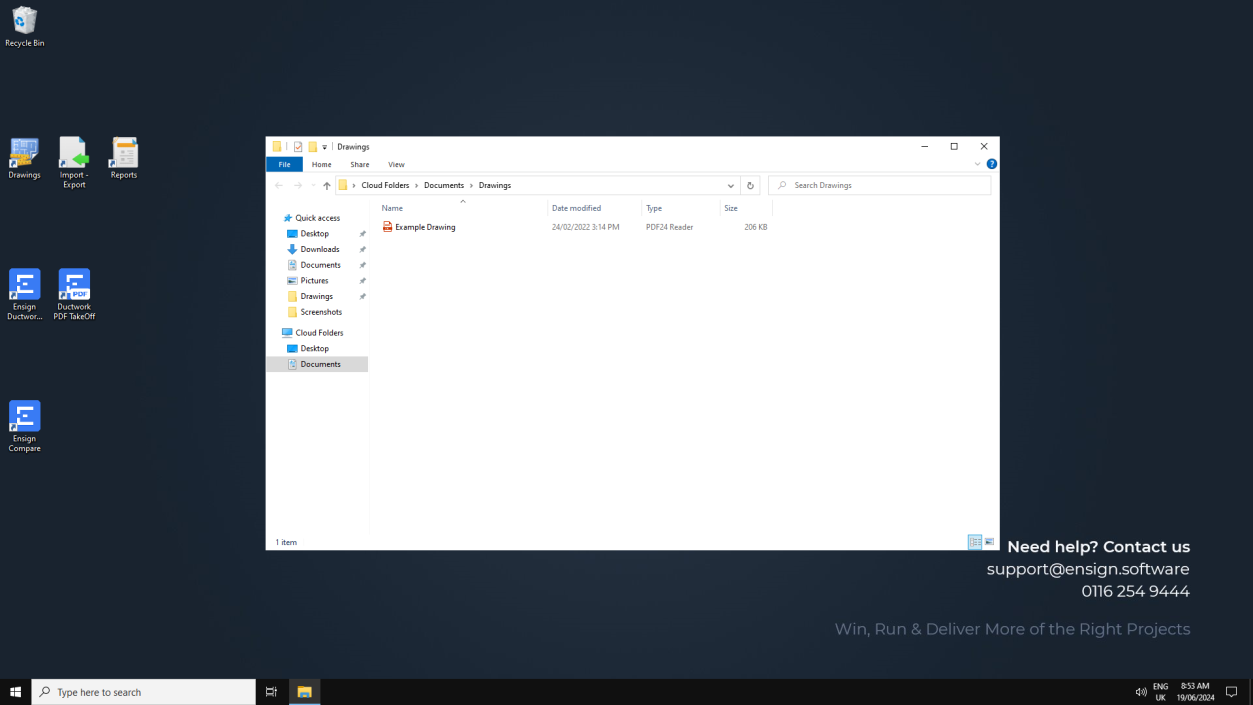
Inside the Drawings folder, right-click and select Paste.
- 4
Wait for the upload to complete. Depending on the size of your files, you may see a progress dialog box.
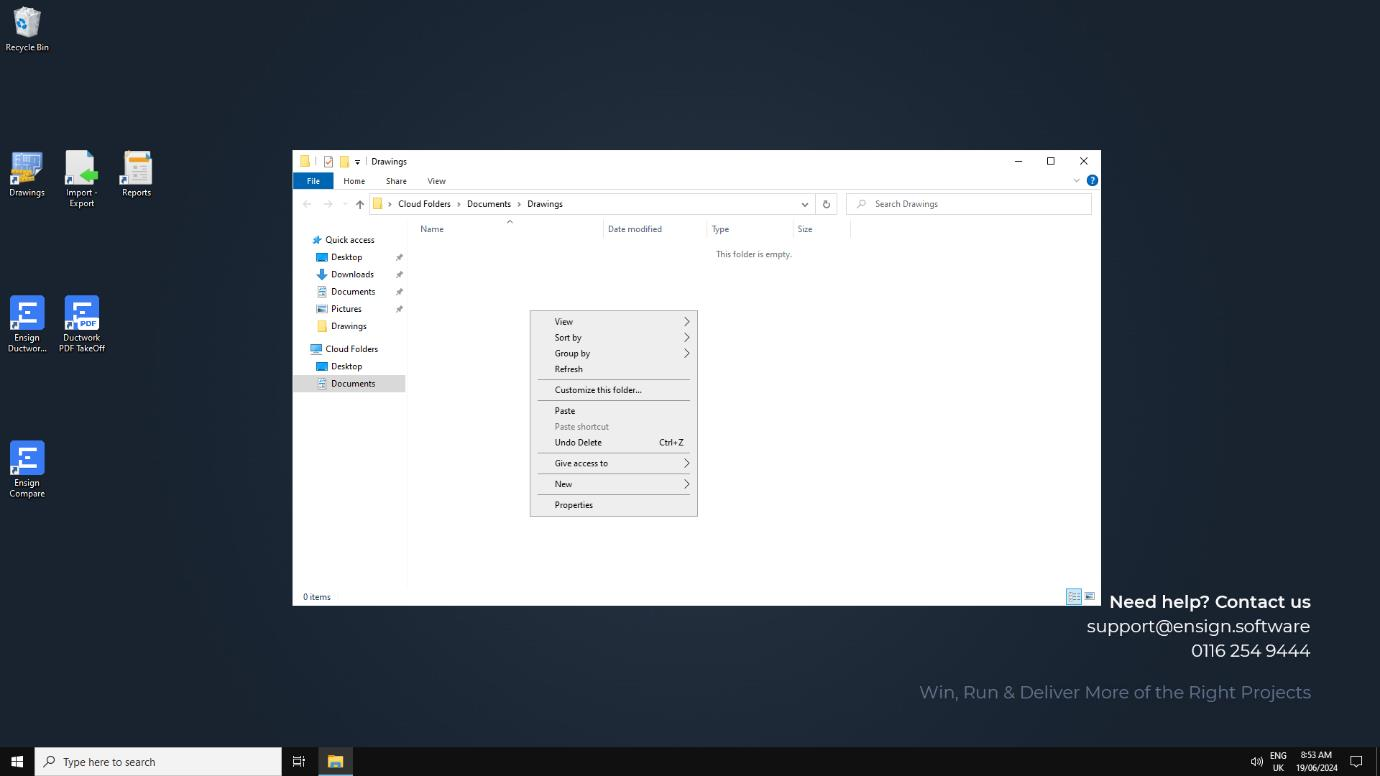
Your drawings are now in the cloud and accessible from Ensign X.
You can upload individual PDFs or entire folders of drawings. Organising your drawings into folders by project makes them easier to find later.
Uploading via the Remote App
If you use the Ensign Remote App rather than the full desktop, you have two options for getting drawings into cloud storage.
Option A: Use the cloud storage shortcut in Ensign X
- 1
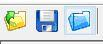
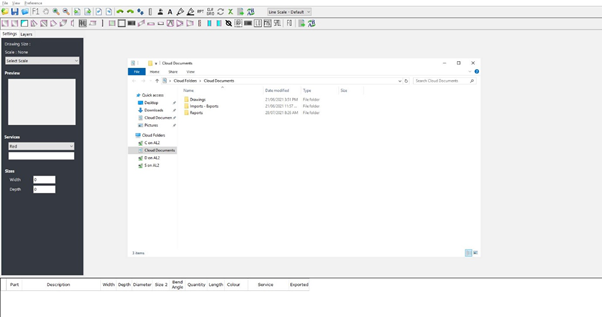
Open the PDF Takeoff software (Ensign X). Press the blue folder icon near the top-left of the screen to open your cloud storage folder.
- 2
The cloud storage folder opens in File Explorer, showing any previously uploaded files. You can also navigate to any drives that are set up on your computer, including company network storage and your local PC.
- 3
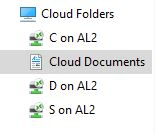
Navigate into the Drawings folder (or a subfolder you have created), then copy and paste your PDF files from your local or network location into this folder.
Option B: Copy and paste from a minimised window
- 1
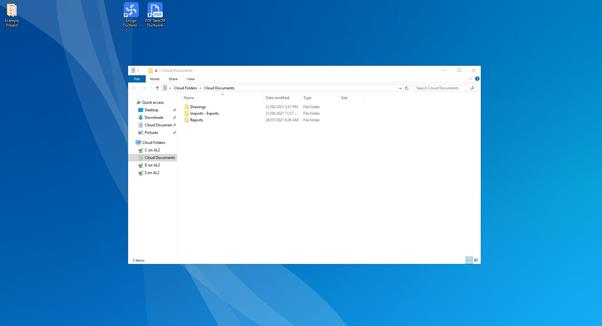
Minimise the PDF Takeoff software.
- 2
Navigate to where your drawings are stored on your local machine or network drive.
- 3
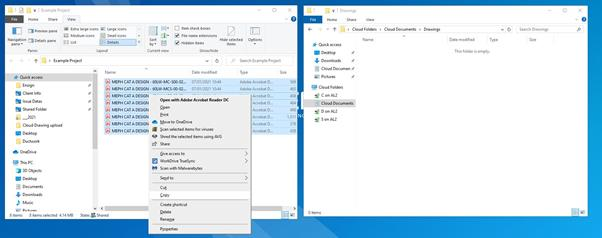
Use your mouse or keyboard shortcuts (Ctrl+C to copy, Ctrl+V to paste) to copy the drawings into your cloud storage location.
Opening uploaded drawings in Ensign X
Once your PDFs are in the cloud, you can open them in a project.
- 1
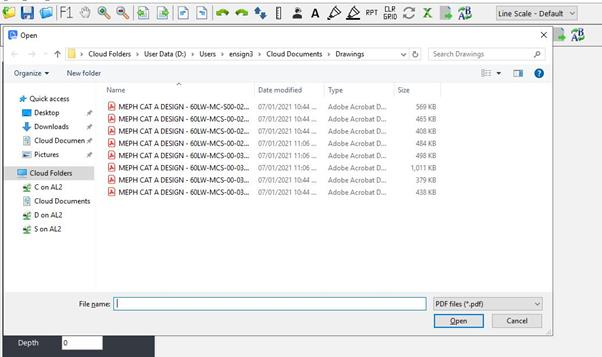
In Ensign X, click the yellow folder icon (Open PDF) in the toolbar to browse your cloud storage.
- 2
Navigate to your Drawings folder and select one or more PDF files. Hold Ctrl or Shift to select multiple drawings.
- 3
Click Open to load the drawings into your project.
You can also upload drawings to the cloud using a linked Dropbox or OneDrive folder, if one has been set up on your system. Simply copy your PDFs into the linked folder and they will sync to your cloud storage automatically.
Large PDF files may take longer to upload depending on your internet connection. Avoid closing the upload dialog or disconnecting while a transfer is in progress.