

Search panel
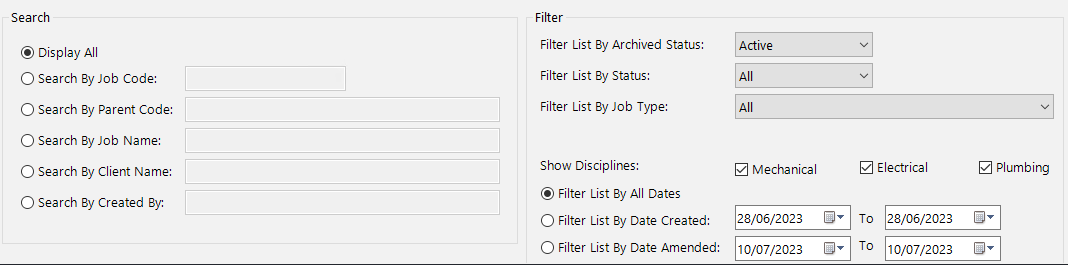
The search panel sits at the bottom-left of the amend job screen. Select one of the radio buttons and enter your search term to find jobs by a specific field:
- Job Code — search by the unique job code assigned when the job was created.
- Parent Code — search by the grouping code. Because the same parent code can be assigned to multiple projects, this is a useful way to find all related quotations at once. For example, you might search for a parent code to see every revision or variation tied to a single project.
- Job Name — search by the name you gave the job on the job header screen.
- Client Name — search by the client or customer associated with the job.
- Created By — search by the user who originally created the job.
Select Display All to clear the search and show every job in the list.
If you are unsure which field holds the information you are looking for, try searching by job name or client name first — these tend to be the most memorable identifiers.
Filter panel
Use the filter options alongside your search to refine the job list further. Filters and searches work together, so you can combine a search term with one or more filters to narrow down your results.
Archived status
Toggle between Active and Archived jobs. By default, the list shows only active jobs. Change this to "Archived" to view jobs that have been moved to the archive. You can restore an archived job at any time from the Options panel — see Delete and Archive Jobs for details.
Status
Filter by job status — for example, follow up, won, or lost. The status drop-down reflects the values available in your system. Setting a status on each job and filtering by it later is a straightforward way to track the progress of your tenders.
Job type
Filter by the custom job types you have configured in the system. If you have set up categories such as "Commercial", "Residential", or "Refurbishment", you can use this filter to display only the relevant projects.
Show Disciplines (MEP only)
Tick or untick Mechanical, Electrical, and Plumbing to show only projects that match a particular discipline. For example, if you only want to see electrical projects, untick Mechanical and Plumbing. This filter is only visible on the MEP version of the software.
Date filters
Filter by date using one of three options:
- Filter List By All Dates — the default; shows all jobs regardless of when they were created or amended.
- Filter List By Date Created — shows only jobs created within the specified date range. Select a start and end date using the calendar controls.
- Filter List By Date Amended — shows only jobs last amended within the specified date range. Select a start and end date using the calendar controls.
Combining search and filter is a powerful way to manage a large job list. For example, you could search by client name and filter by status to find all "follow up" jobs for a specific client within a particular date range.