

Overview
You can create your own assemblies at any time from items on the takeoff screen. This lets you bundle frequently used combinations of products — such as cable tray with couplings and supports, or a socket with its back box and cable allowance — into a single, reusable entry. Once saved, the assembly is available to every user who shares your database, across all future jobs and on the PDF takeoff platform.
You do not need a dedicated job to create assemblies. You can build them as you go within any job, or you can set up a blank job specifically for the purpose of assembly creation if you prefer to do it in bulk.
Adding items to the takeoff screen
The first step is to get all the component items onto the examine grid.
- 1
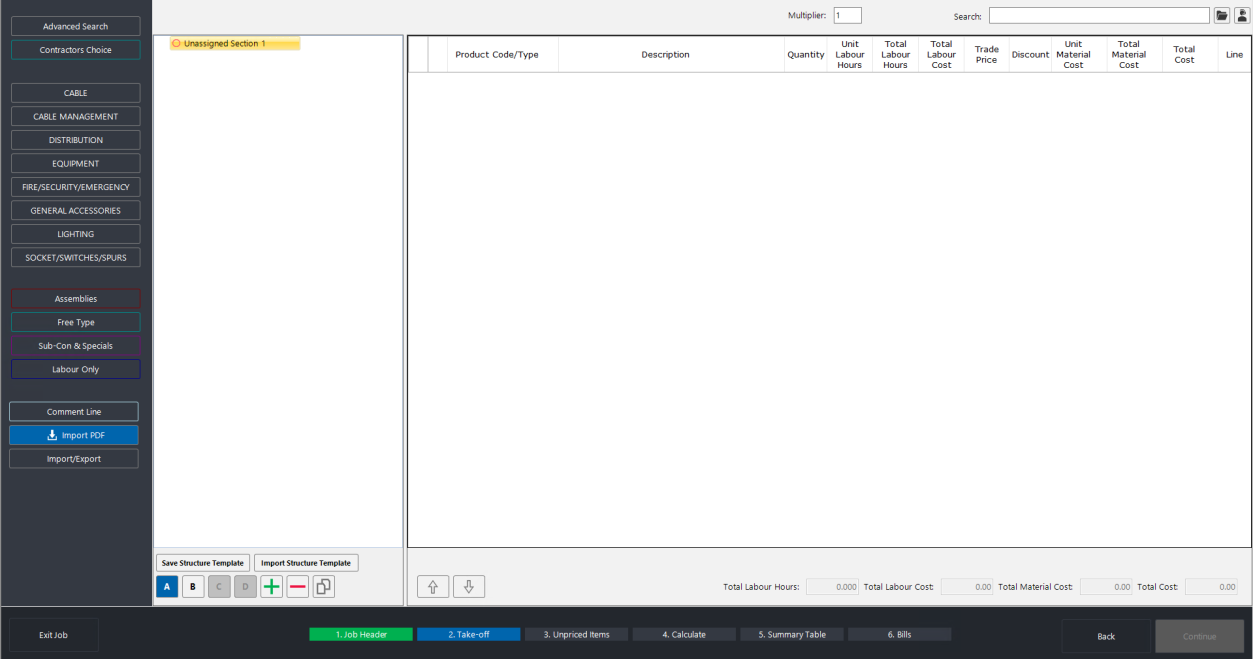
Navigate to the takeoff screen and select any section — it does not matter which, since the assembly will be saved to the master database rather than to a specific job section.
- 2
Add each item you want to include in the assembly. You can find items using any of the usual methods: browsing the eight database categories on the left-hand side, using the advanced search, or typing a product code or description into the search bar at the top right of the screen.
- 3
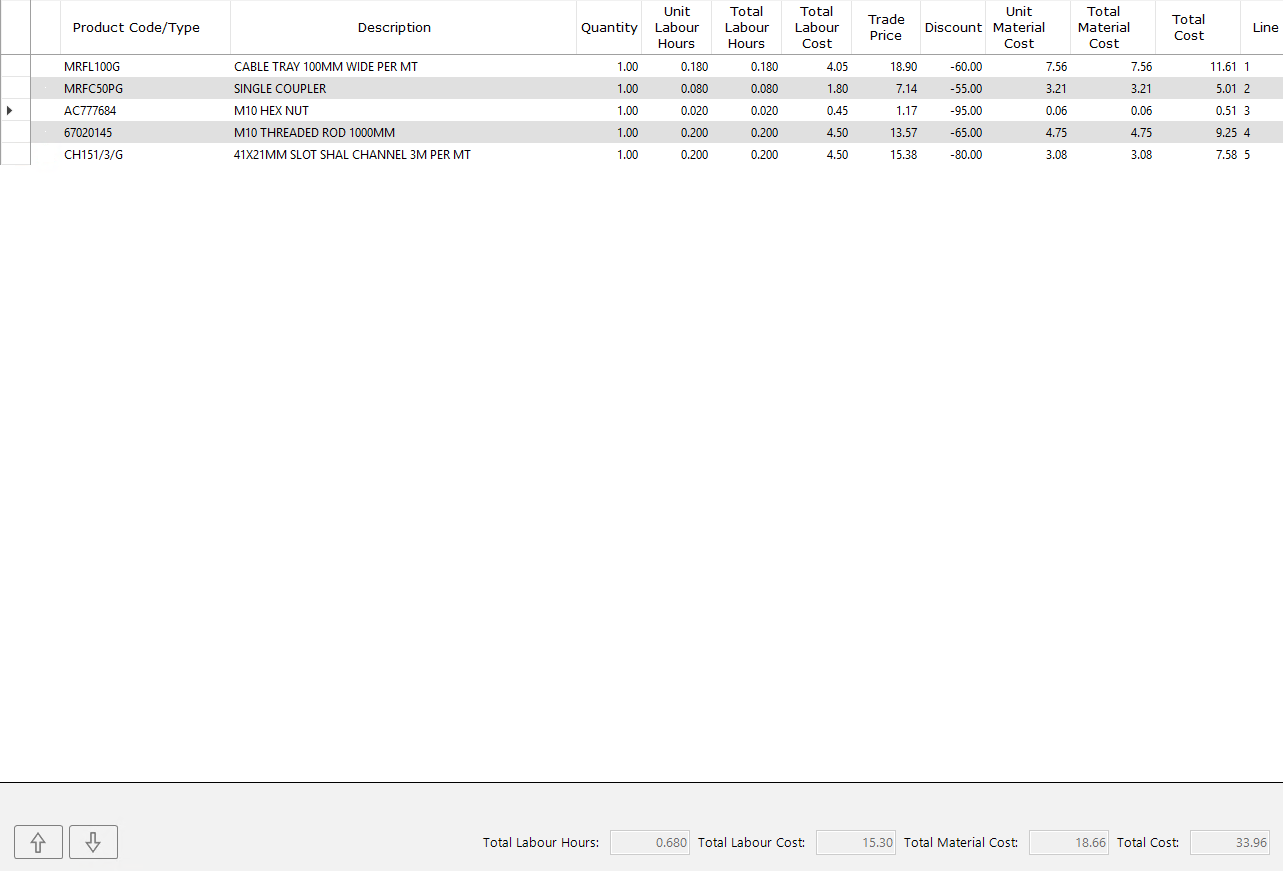
Enter a quantity of 1 for each item. The precise ratios between components are set on the assembly builder screen in the next step — at this stage you simply need every item present on the grid.
Selecting items and creating the assembly
- 1
Highlight all the items on the examine grid. Click the row indicator on the left-hand side of the first item, then hold Shift and click the row indicator of the last item. Make sure you select from the left-hand side so that entire rows are highlighted — partial cell selections will not work. The rows should appear fully highlighted in blue, similar to selecting rows in Excel.
- 2
Right-click on the highlighted selection. You must right-click on the row where the black triangle marker sits; clicking elsewhere may deselect your items. From the context menu, select Create Assembly.
- 3
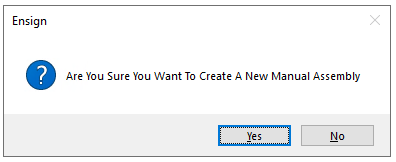
A confirmation prompt appears asking: "Are You Sure You Want To Create A New Manual Assembly". Select Yes to proceed to the assembly builder screen.
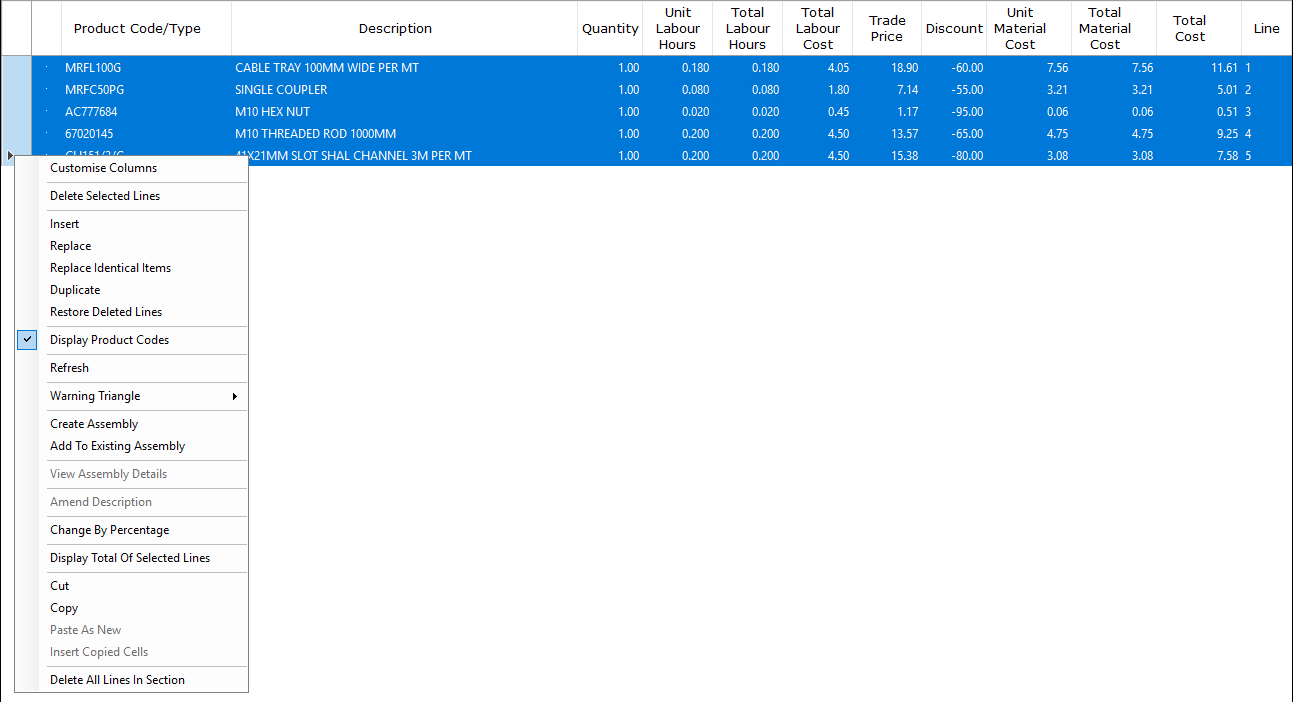
If you accidentally deselect your items, simply re-highlight them from the left-hand row indicators. Remember that the right-click must land on the row with the black triangle — this is a common source of confusion when first creating assemblies.
The assembly builder screen
After confirming, you are taken to the assembly builder screen. This is the central configuration screen for the assembly. It displays every component item and provides fields for naming, categorisation, unit of measure, quantities, and associated components.
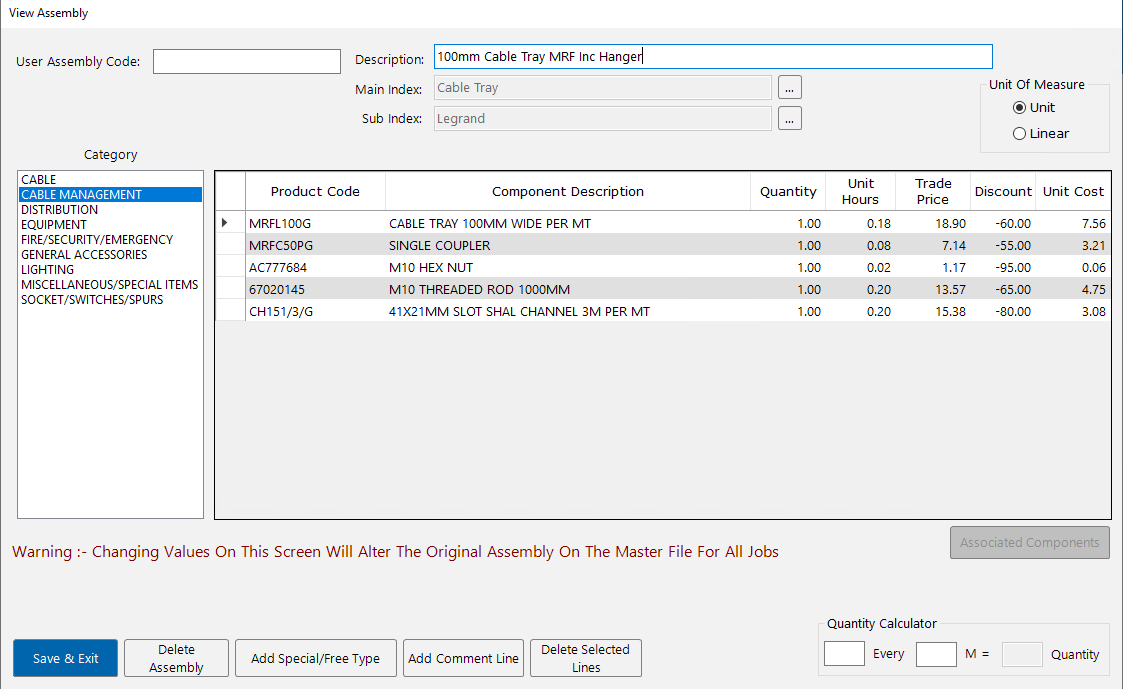
At the bottom of the screen you will see a warning in red text: "Changing Values On This Screen Will Alter The Original Assembly On The Master File For All Jobs." This is important to bear in mind — any changes you make here affect the master assembly, not just the current job. If you need to adjust quantities for a single project only, do so on the takeoff screen after inputting the assembly, or enable the allow one-off instances preference (covered in Assembly Display and Preferences).
Setting the unit of measure
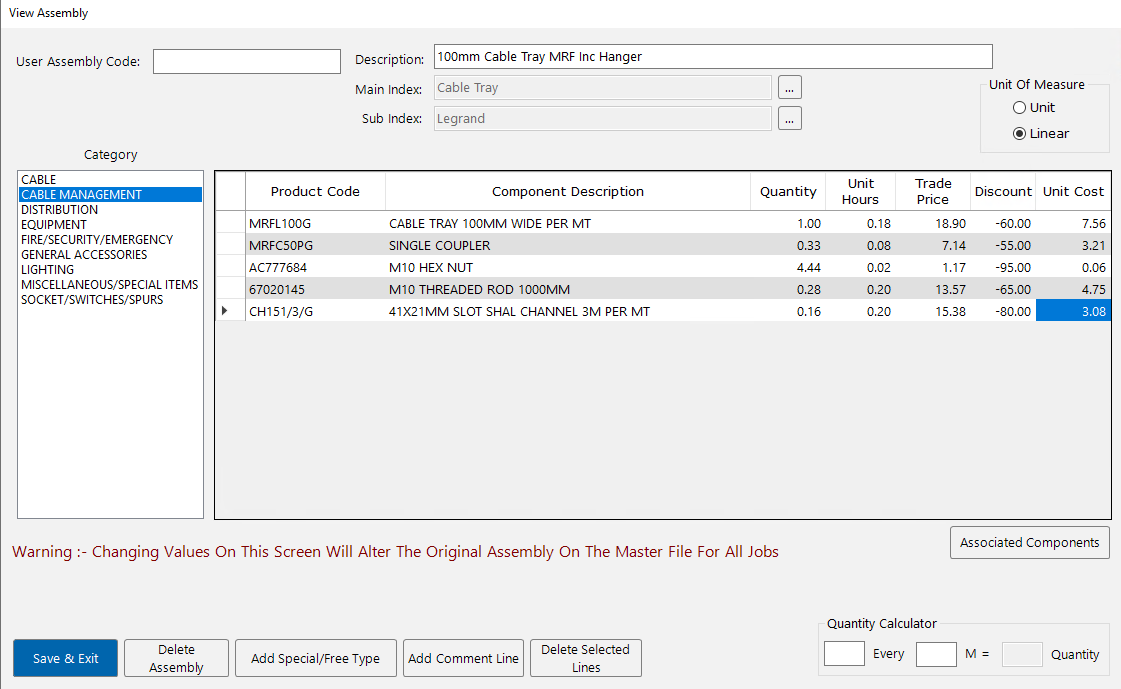
In the top-right corner of the assembly builder screen, choose between Unit and Linear:
- Unit — for countable items. When you use the assembly on the takeoff screen, you enter how many units you need. A typical example is a socket assembly containing one front plate, one back box, and a cable allowance.
- Linear — for measured runs. When you use the assembly, you enter how many metres you need. A typical example is a cable tray installation including brackets, couplings, and fixings. The software multiplies each component's per-metre quantity by the meterage you enter.
Choose the correct setting before adjusting quantities, as it determines how the quantity values are interpreted.
Setting quantities
Unit assemblies
For unit assemblies, set each item's quantity to the amount needed per single unit of the assembly. For example:
| Item | Quantity | Rationale |
|---|---|---|
| Front plate | 1 | One per socket point |
| Back box | 1 | One per socket point |
| Twin and earth cable | 14 | 14 metres of cable per point |
Linear assemblies
For linear assemblies, set each item's quantity as the amount needed per metre of the run. This is where the Quantity Calculator at the bottom-right of the assembly builder screen becomes useful.
The calculator has three fields: enter how many of the item you need, how often (in metres), and it calculates the per-metre figure. For example, if you need 1 coupling every 3 metres, enter 1 in the first field and 3 in the second — the calculator returns 0.333, which is the value you enter in the quantity column.
Here is a worked example for a cable tray assembly with supports at every 1.8 metres:
| Item | Calculation | Quantity |
|---|---|---|
| Cable tray (per metre) | 1 every 1m | 1.00 |
| Single coupling | 1 every 3m (1 / 3) | 0.333 |
| M10 hex nut | 8 every 1.8m (8 / 1.8) | 4.44 |
| M10 threaded rod | 0.5m every 1.8m (0.5 / 1.8) | 0.278 |
| Slotted channel | 0.3m every 1.8m (0.3 / 1.8) | 0.167 |
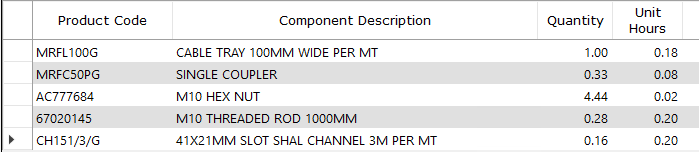
If you want to allow for wastage on a linear item such as tray, enter the quantity as 1.05 (for 5%) or 1.10 (for 10%) instead of 1.00. This is optional but can be a useful allowance. You can include wastage on any component in the assembly, not just the main item.
You do not need to know every per-metre figure off the top of your head. The quantity calculator is there to do the arithmetic — just enter the count and the spacing, and it returns the decimal. For example, if you need 6 nuts every 3 metres, entering 6 and 3 gives 2.00.
Naming and categorising
Fill in the following fields to determine where the assembly is stored and how it appears when browsing:
- Category — select the most appropriate category from the list on the left-hand side of the assembly builder screen (e.g. Cable Management, Socket/Switches/Spurs, Distribution). This groups the assembly alongside related items.
- Main Index — a primary grouping description within the category (e.g. "Cable Tray", "Tray", or "Sockets"). Press Confirm after entering the value.
- Sub Index — a secondary grouping description (e.g. "LeGrand", "MRF", a manufacturer name, or a specification such as "Pre-Galv"). Press Confirm after entering the value.
- Description — the display name for the assembly (e.g. "100mm Cable Tray MRF Inc Hanger" or "50mm MRF Tray Including Hanger at 3m"). Write the description so that you and your colleagues can always identify the assembly at a glance — include the size, type, manufacturer, and key details such as support spacing.
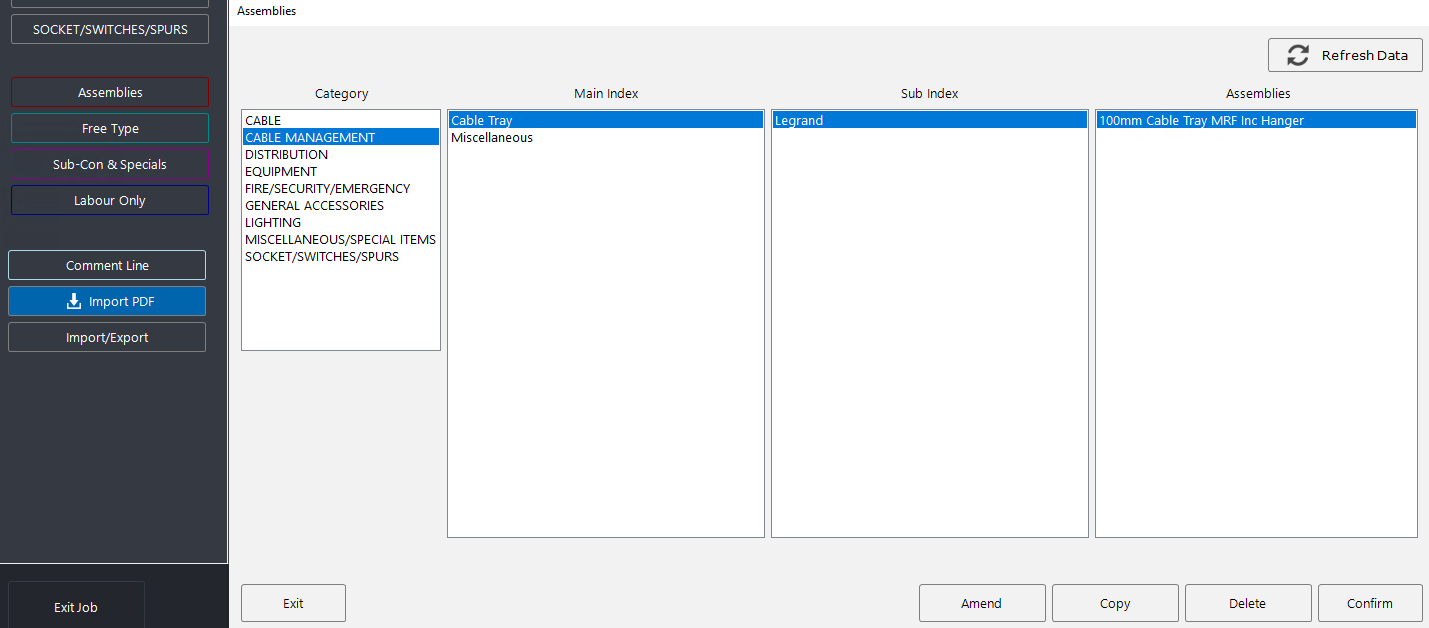
The naming hierarchy works like a folder structure: when browsing assemblies, you first select the category, then the main index, then the sub index, and finally the individual assembly description. Choosing clear, consistent names makes it faster for everyone on your team to find the assembly they need.
User assembly code
You can optionally assign a User Assembly Code in the field at the top-left of the assembly builder screen. This is a short alphanumeric reference — for example, AL01 — that provides a quick way to find the assembly.
When you type the user assembly code into the search bar on the takeoff screen and press Enter, the software brings the assembly straight up on screen, ready for you to input a quantity. This is faster than navigating through the category, main index, and sub index hierarchy, particularly for assemblies you use frequently.
Whether or not you use assembly codes is a matter of personal preference. Some estimators find them very useful; others prefer to search by description. If you do use them, consider a consistent naming scheme — for example, your initials followed by a sequential number.
Saving the assembly
Press Save & Exit when you are finished. The assembly is immediately saved to your master database and is available:
- In the assemblies browser for all future jobs.
- For all users who share your database — there is no need for each estimator to create the same assembly separately.
- On the Ensign X (PDF takeoff) platform, where it can be used during on-screen measurement.
After saving, you can verify the assembly by clicking the Assemblies button on the left-hand side of the takeoff screen and navigating to the category, main index, and sub index you chose.
Prices, discounts, and labour times
Items inside assemblies are not frozen at the prices current when the assembly is created. Assembly components remain linked to the live database, which means:
- Price updates — when you run a weekly price update, the trade prices of items within your assemblies are updated automatically.
- Discount changes — if you amend a discount for a product or product range, the change is reflected inside any assembly that contains that item.
- Labour time changes — if Ensign updates the installation time for a product, the assembly picks up the new value.
You do not need to go back and manually update your assemblies when prices or labour times change — the software handles this for you.