

What are assemblies?
Assemblies are groups of items stored together under a single entry. Instead of adding each component individually — cable tray, couplings, hangers — you select the assembly, enter a quantity or meterage, and the software inputs all the relevant items with the correct ratios.
Ensign includes a set of pre-built assemblies covering common combinations such as switch sockets with back boxes and cable allowances, and cable management runs with brackets and fixings. You can also create your own (see Creating Assemblies) or modify the pre-built ones (see Modifying Pre-Built Assemblies).
Assemblies created by any user are available to everyone who has access to your database, so there is no need for each estimator to build the same assembly separately. They are also available on the Ensign X (PDF takeoff) platform, where they can be used during on-screen measurement — count or measure once with an assembly, and all the component items are captured automatically.
Browsing assemblies
- 1
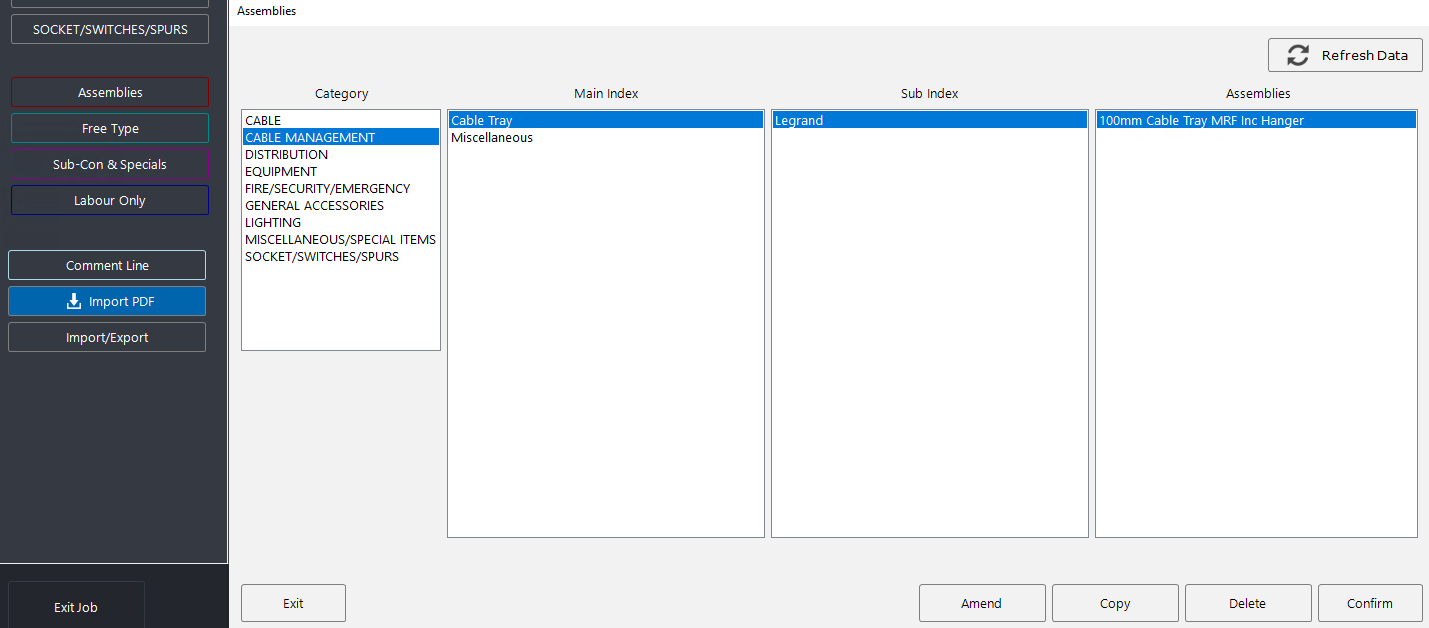
Click the Assemblies button on the left-hand side of the takeoff screen.
- 2
Browse by Category, Main Index, and Sub Index to find the assembly you need. The hierarchy works like a folder structure — select the category first, then drill down through the groupings.
- 3
Click the assembly name to select it. Press More Info if you want to see the full list of component items, quantities, and costs before inputting.
Searching for assemblies
Assemblies also appear in the standard product search alongside individual items. Type a description or product code into the search bar at the top-right of the takeoff screen and press Enter. Assembly results are displayed in a distinct red colour so you can tell them apart from single items.
To filter search results to assemblies only, tick the Assemblies checkbox at the bottom of the search results screen.
User assembly codes for fast lookup
Each assembly can be given an optional User Assembly Code — a short reference you define when creating or amending the assembly (e.g. AL01). If you type this code into the search bar and press Enter, the software brings the assembly straight up on screen, ready for input.
This is particularly useful for assemblies you use frequently. The system remembers your most-used items, so the more you use this feature, the faster your workflow becomes.
Inputting an assembly
- 1
Select the assembly from the browser or search results.
- 2
Enter the quantity (for unit assemblies) or the meterage (for linear assemblies).
- 3
Choose whether to split lines (see Assembly Display and Preferences for details on how this affects the examine grid and reports).
- 4
Press Confirm to add the items to whichever section is currently highlighted in the sectional structure.
Press Confirm and Reselect to immediately reopen the assembly browser so you can input another assembly without navigating back. This saves time when you need to add several assemblies in succession.
Unit vs linear input
- Unit assemblies — for countable items (e.g. a complete socket including back box and cable). You enter how many units you need. The software multiplies each component's quantity by the number of units.
- Linear assemblies — for measured runs (e.g. a cable tray installation including brackets and couplings). You enter how many metres you need. Quantities for each component are calculated from the per-metre ratios set up in the assembly. You may need to round up the resulting quantities if you want whole numbers.
Assemblies are one of the biggest time-saving features in the software. Rather than counting or measuring items three or four times, you can do it once with an assembly and know that all the correct components are included. Investing time in building a good assembly library pays off across every future project.