

Overview
The Copy Job button on the Options panel creates a duplicate of the selected job with a new job code. This is one of the most important features on the amend job screen — it allows you to create variations, revisions, or templates without altering the original estimate.
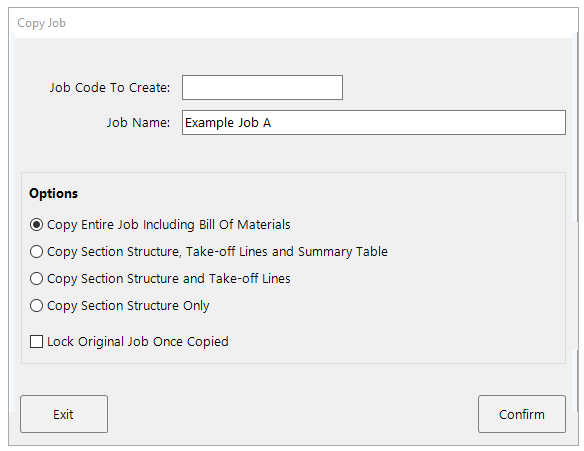
Copying a job
- 1
Highlight the job you want to copy in the job list and click Copy Job.
- 2
Enter a new Job Code To Create. The job code must be unique — if you try to use one that already exists, the system will reject it. The Job Name is pre-filled from the original but can be changed to reflect the purpose of the copy (e.g. "Rev B" or "Value Engineering Option").
- 3
Choose what to include in the copy by selecting one of the four options described below.
- 4
Optionally tick Lock Original Job Once Copied to prevent any further changes to the source job. This is a safeguard that ensures the original estimate is preserved exactly as it was at the time of copying.
- 5
Press Confirm to create the copy. The new job appears in the job list with the code you specified.
The four copy modes
Copy Entire Job Including Bill of Materials
Duplicates everything: the section structure, all takeoff lines, the summary table with markup, and all generated bills (tender summaries, schedules of rates, and supporting documents).
Use this when you want an exact replica of the finished quotation — for instance, to create a snapshot before making changes, or to preserve a complete record of a submitted tender.
Copy Section Structure, Take-off Lines and Summary Table
Duplicates the section structure, all takeoff lines, and the summary table with its markup and pricing. Bills are excluded and will need to be regenerated.
Use this when you want to revise markup or preliminaries without starting from the takeoff. The bills are easy to regenerate once you have made your changes on the summary table.
Copy Section Structure and Take-off Lines
Duplicates the section structure and all takeoff lines, but excludes the summary table, markup, and bills. The job will need to be recalculated.
Use this when you want to re-price a job with updated trade prices or different discounts. When you recalculate the copy, you can choose Automatic Update to bring all trade prices up to date, while the original remains at its historical pricing.
Copy Section Structure Only
Creates a blank shell with just the section layout. No takeoff lines, summary data, or bills are included.
Use this when you want to create a template that can be reused for similar projects, or when you want to build a fresh estimate using the same tender breakdown as a previous job. You can also save the resulting structure as a section template for even faster reuse.
When to use Copy Job
The copy function is essential for maintaining a clear audit trail of your estimates. Below are the most common scenarios.
Variations and revisions
If a client asks for changes or you want to explore a different pricing strategy, always work on a copied version of the job. This preserves the original estimate as a reference and ensures you can always return to the previous quotation if needed. Name the copy clearly — for example, "Rev B", "VE Option 1", or "Client Variation 2" — so you can distinguish between versions in the job list.
Re-pricing existing tenders
If you are coming back to a previously completed quotation — for example, because the project was delayed and prices have changed — copy the job first. When you recalculate the copy, choose Automatic Update to bring all trade prices up to date while the original remains at its historical pricing. This gives you a clear comparison between the old and new prices.
Creating templates
If you frequently quote similar types of work, copy a completed job using Copy Section Structure Only to create a reusable template with your preferred section breakdown already in place.
Correcting a job code
Because the job code cannot be changed once a job is created, the simplest way to fix an incorrect code is to copy the job with the correct code and then delete or archive the original.
Always work on a copied version of a job when making variations or revisions. This preserves the original estimate as a reference and ensures you have a complete history of every quotation you have submitted. It only takes a few seconds to copy a job, but it can save significant time and frustration if you ever need to refer back to the original.