

Overview
In the multidiscipline (MEP) version of the estimating software, each section can be assigned a discipline — Electrical, Mechanical, or Plumbing. This controls which database items and labour rates are available within that section.
The discipline system works in two modes:
- Strict mode — each section is locked to a single discipline. You can only place items from that discipline's database into the section.
- Non-strict mode — sections can contain a mix of electrical and mechanical items. You toggle between databases using a switch at the top of the takeoff screen.
Setting the default discipline on the job header
When creating a new job, the Default Discipline drop-down on the job header page determines which discipline is assigned to new sections by default.
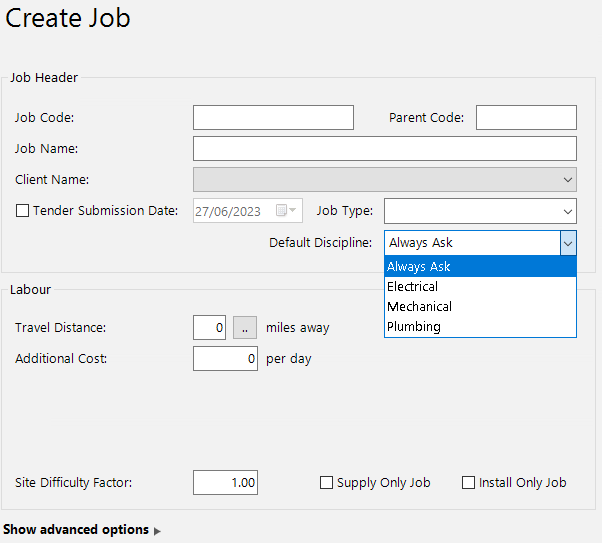
The available options are:
| Option | Behaviour |
|---|---|
| Always Ask | Prompts you to choose a discipline each time you create a new section |
| Electrical | All new sections default to Electrical |
| Mechanical | All new sections default to Mechanical |
| Plumbing | All new sections default to Plumbing |
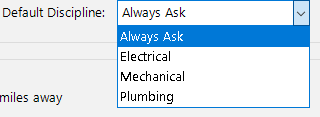
If your project includes multiple trades, set the default to the most common discipline to save time, then change individual sections as needed. Alternatively, choose Always Ask if you want to be prompted each time.
Identifying a section's discipline
In strict mode, each section displays a letter next to its name indicating the current discipline:
- [E] — Electrical
- [M] — Mechanical
- [P] — Plumbing
![A section name showing the [E] discipline indicator for Electrical](/_next/image?url=%2Fimages%2Fensign-software%2Festimating%2Fchanging-disciplines%2Fimg-002.png&w=3840&q=75)
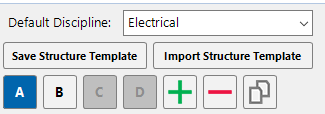
The default discipline is also displayed at the bottom of the section panel.
Changing a section's discipline
You can change the discipline of any section directly on the takeoff screen, provided it does not contain any takeoff lines.
- 1
Right-click the section you want to change.
- 2
Hover over Section Discipline in the context menu.
- 3
Select the new discipline — Electrical, Mechanical, or Plumbing.
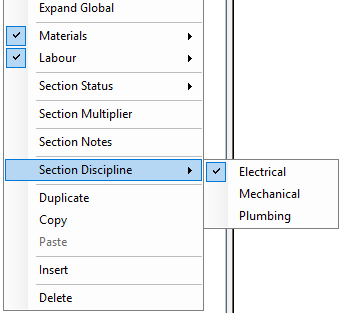
The section's discipline indicator updates, and the database options on the left-hand side change to reflect the selected discipline.
You cannot change a section's discipline if it already contains takeoff lines. Remove all items from the section first, or create a new section with the correct discipline and move the items across.
Changing the default discipline for new sections
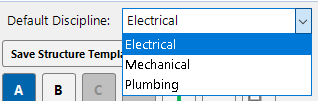
To change the default discipline without returning to the job header, adjust the Default Discipline drop-down at the bottom of the section panel on the takeoff screen. All sections created after the change will use the new default.
Using section templates with disciplines
When importing a section template, you can preset the discipline for each section within the spreadsheet itself. Use column E with the following values:
| Value | Discipline |
|---|---|
| 1 | Electrical |
| 2 | Mechanical |
| 3 | Plumbing |
This avoids having to manually set the discipline for every section after import.
Restricting users to a single discipline
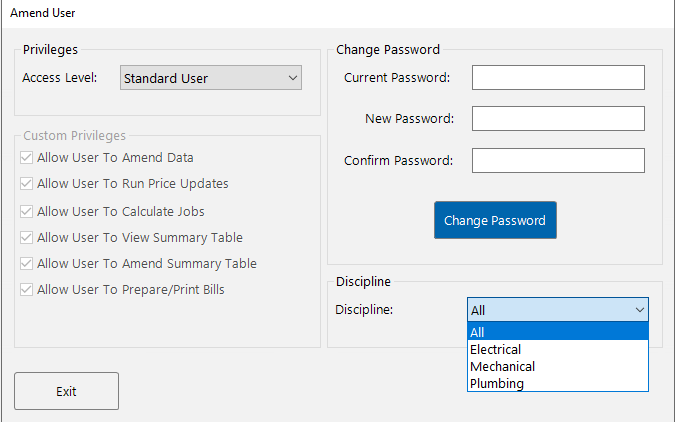
Administrators can restrict individual users so they only have access to one discipline. A restricted user can only use that discipline's database and create sections within that discipline. They cannot change section disciplines.
- 1
Go to Tools > User Control from the main menu.
- 2
Select the user you want to restrict.
- 3
In the Discipline section, change the drop-down from All to the specific discipline — Electrical, Mechanical, or Plumbing.
- 4
Press Exit to save.
Only users with administrator privileges can access the User Control menu and apply discipline restrictions.