

Overview
The amend job screen is your central hub for managing all existing estimates. From here you can open jobs, search and filter the job list, and access a range of administrative functions. The screen displays every job in a table with columns for job code, parent code, disciplines, job name, client name, job type, quoted price, date created, date amended, tender submission date, status, and tender completion.
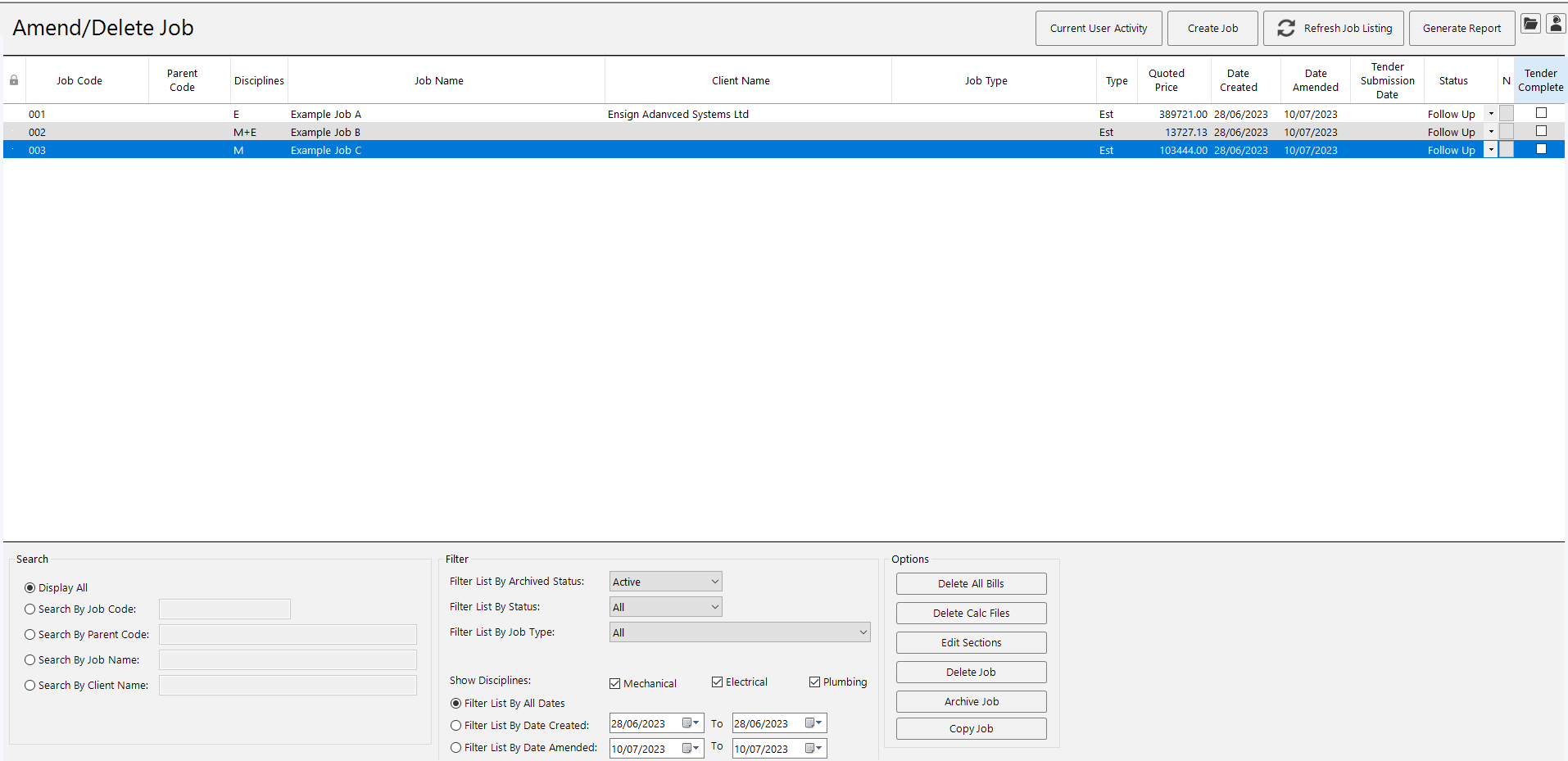
You can set the amend job screen as your default home screen by ticking the option at the bottom of the page. This replaces the traditional home screen so you land directly on your job list every time you open the estimating software. The screen will still notify you when price updates are available, just as the standard home screen does.
Toolbar buttons

The toolbar along the top-right of the screen provides quick access to key functions.
Current User Activity
View which users are currently logged into which job. This button is only available to users with administrator privileges.
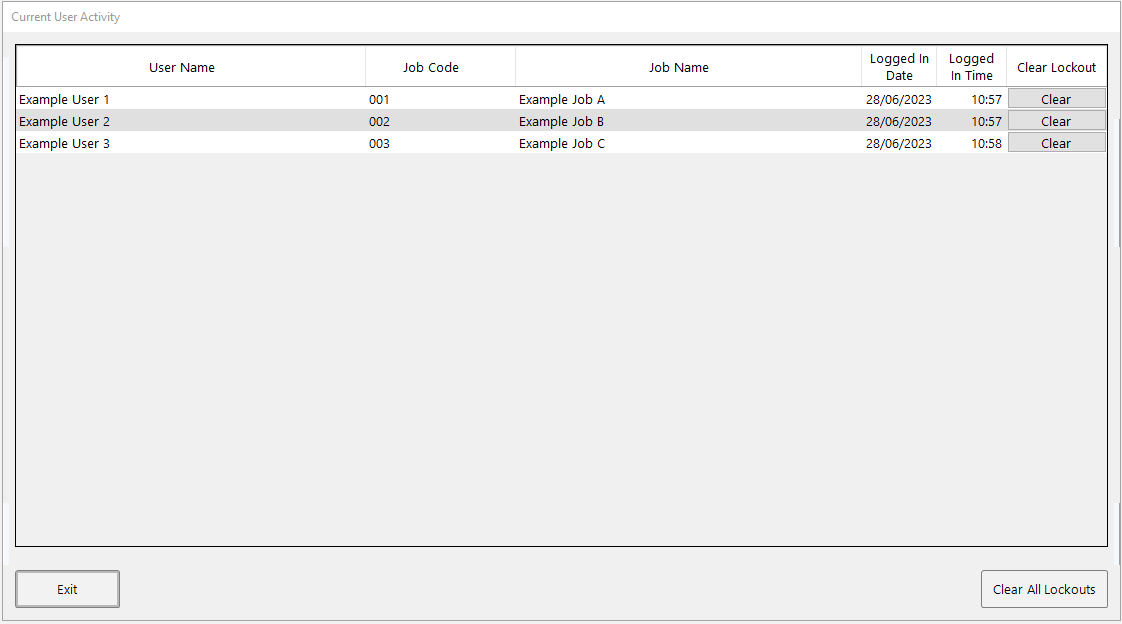
The Current User Activity window displays a table with each user's name, the job code and job name they are working in, and the date and time they logged in. If a user has exited a job incorrectly and left a lockout behind, you can clear it from this window using the Clear button next to their entry, or press Clear All Lockouts at the bottom-right to release every active lockout at once. This is particularly useful if a colleague's session was interrupted and others are now unable to access the job.
Create Job
A shortcut that takes you directly to the create job screen without needing to return to the main menu. This opens the same job header page as the dedicated Create Job option on the home screen.
Refresh Job Listing
Reloads the job list to reflect the current state of your database. Use this after manually adding a job through the file explorer or if a colleague has just created a new project that does not yet appear in your list. This may take a moment if you have a large number of jobs.
Generate Report
Prints the amend job screen, including all information currently displayed. The report respects any active search terms and filters, so you can use it to produce a filtered list of jobs — for example, all jobs with a particular status or created within a specific date range.
Browse Documents / File Explorer

Opens your cloud file explorer. This is the same cloud storage area where drawings are uploaded for the PDF takeoff and where exported reports, bills, and documents are initially saved. You can use it to upload files, retrieve exported quotations, or organise your project documents.
If your organisation has multiple users, you will find both a private area (visible only to you) and a shared area labelled with your company name (visible to all colleagues). Files you copy into the shared area will be accessible to every user on your account.
Support

Opens the support panel, which is available from the top-right corner of every screen in the software. From here you can:
- View the direct support telephone number (press option one to reach the support team).
- Submit a support ticket for technical issues.
- Submit a suggestion — whether that is a feature request, a function you would like to see in a future update, or a product range or manufacturer you would like added to the database.
- Access the live online chat to speak with a member of the team.
- Browse help articles that are updated regularly with tips and guidance.