

Overview
The Options panel sits on the right-hand side of the amend job screen. Every button in this panel applies to the currently highlighted job only — it will not affect any other project. Make sure you have the correct job selected before pressing any option.
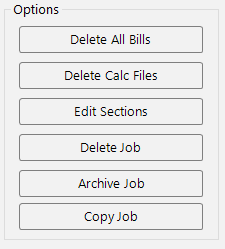
Delete All Bills
Permanently removes all bills (quotation documents) associated with the selected job. Bills are the final tender documents produced at the end of the estimating process — tender summaries, quantified schedules of rates, and any supporting documentation.
This function can also be used as a reset if a job appears stuck on the final bill page. Removing the bills allows you to return to the summary table and regenerate them from scratch.
This action cannot be undone. The bills will need to be regenerated from the summary table if you need them again.
Delete Calc Files
Resets the job to a pre-calculation state. When you press this button, the following data is removed:
- All summary table data, including material category breakdowns, labour costs, and totals.
- All markup — on-costs, overhead and profit percentages, and builder's discount.
- All preliminaries, prime costs, and provisional sums entered on the summary table.
- All bills (quotation documents).
Your takeoff lines and section structure remain untouched. The job is returned to the state it was in before you first pressed Continue to calculate, allowing you to recalculate with the latest trade prices and discounts.
When to use Delete Calc Files
- The job is stuck at the calculation stage — if the software encounters an issue during calculation and the job cannot proceed, deleting calc files and recalculating is often the quickest resolution.
- You want to completely strip out old markup — if pricing has changed significantly or you want to start the markup from scratch, this resets everything while preserving all your takeoff work.
- You need to recalculate with current prices — deleting calc files forces a full recalculation using the latest trade prices and discount tables when you next press Continue.
If you simply want to update prices without losing your markup, you do not need to delete calc files. Instead, re-enter the summary table and use the recalculation prompts. The recalculation options — Retain, Manual Update, Automatic Update, and Do Not Calculate — give you finer control over which prices are refreshed:
- Retain — keeps all previous material prices and only calculates new items.
- Manual Update — shows you what has changed and lets you decide item by item.
- Automatic Update — updates everything to the latest trade prices with your discounts applied.
- Do Not Calculate — makes no changes at all.